Product guide and screenshot demo

How to use What To Test

Find what each feature does, where to open it, and what to do next. Start with the guide or follow one real practice session below.

1. Getting started

Expand

1.1

Home and continue practice

What to do

Choose a practice area or resume your latest saved activity.

What you will see

The home widget shows available local progress and a next action after you have practiced.

Open this feature
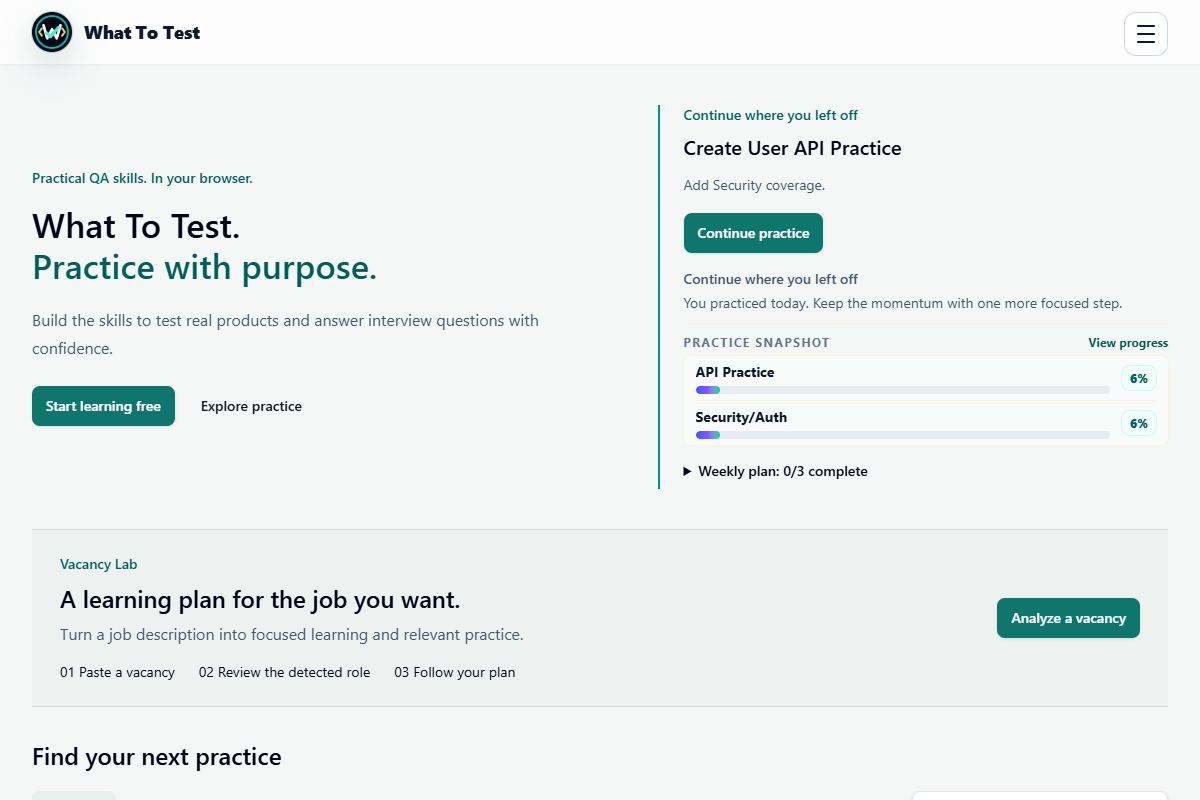
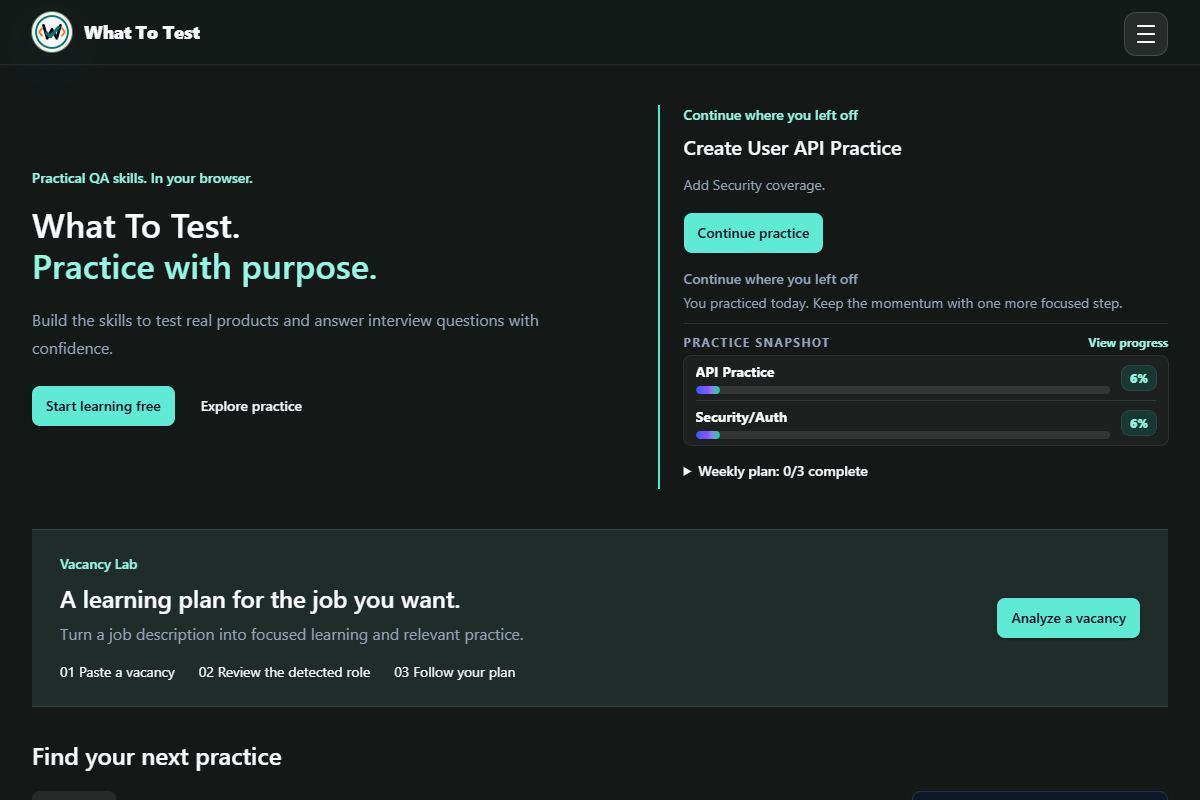
Home and continue practice: Home after an example practice attempt, with a resume action.

Home after an example practice attempt, with a resume action.

Open the screenshot to view it full size. Example session.
1.2

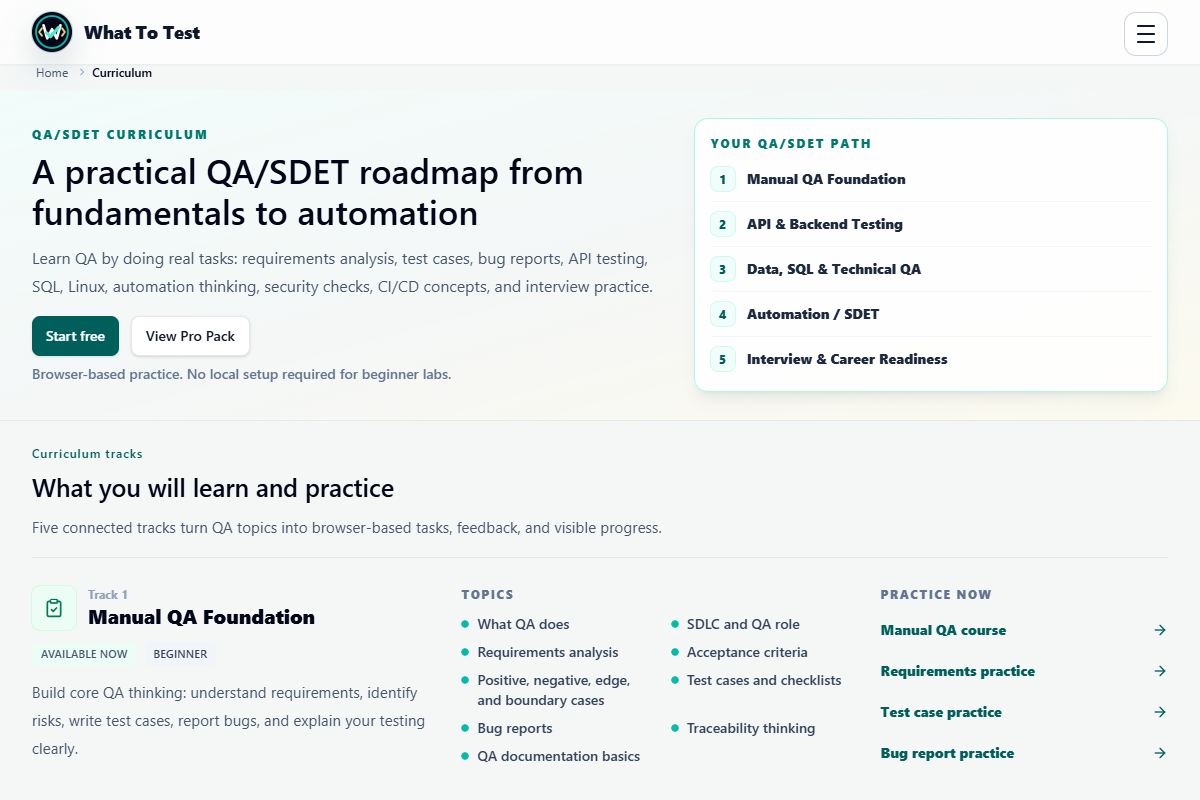
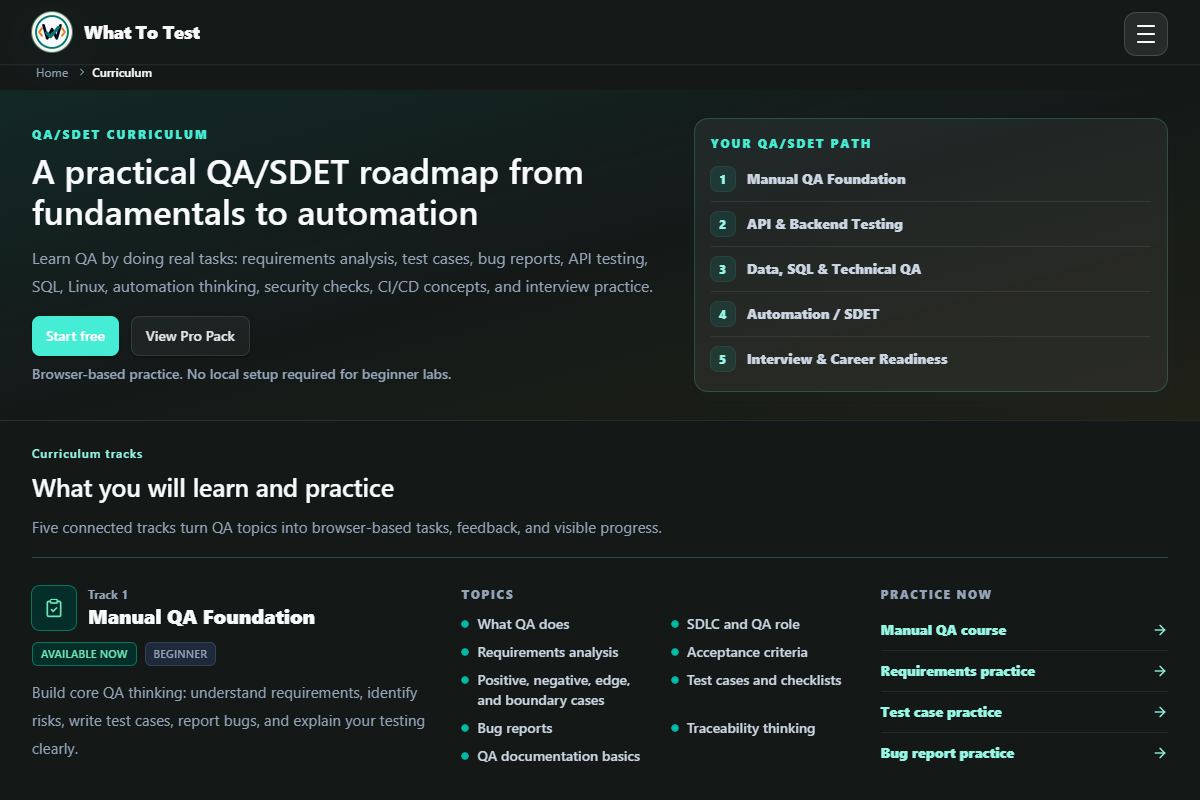
Curriculum and learning paths

What to do

Choose a track and open its course or trainer links.

What you will see

Available now and Planned next distinguish usable foundations from future expansions.

Open this feature
Curriculum and learning paths: Curriculum tracks and the learning path overview.

Curriculum tracks and the learning path overview.

Open the screenshot to view it full size. Example session.
1.3

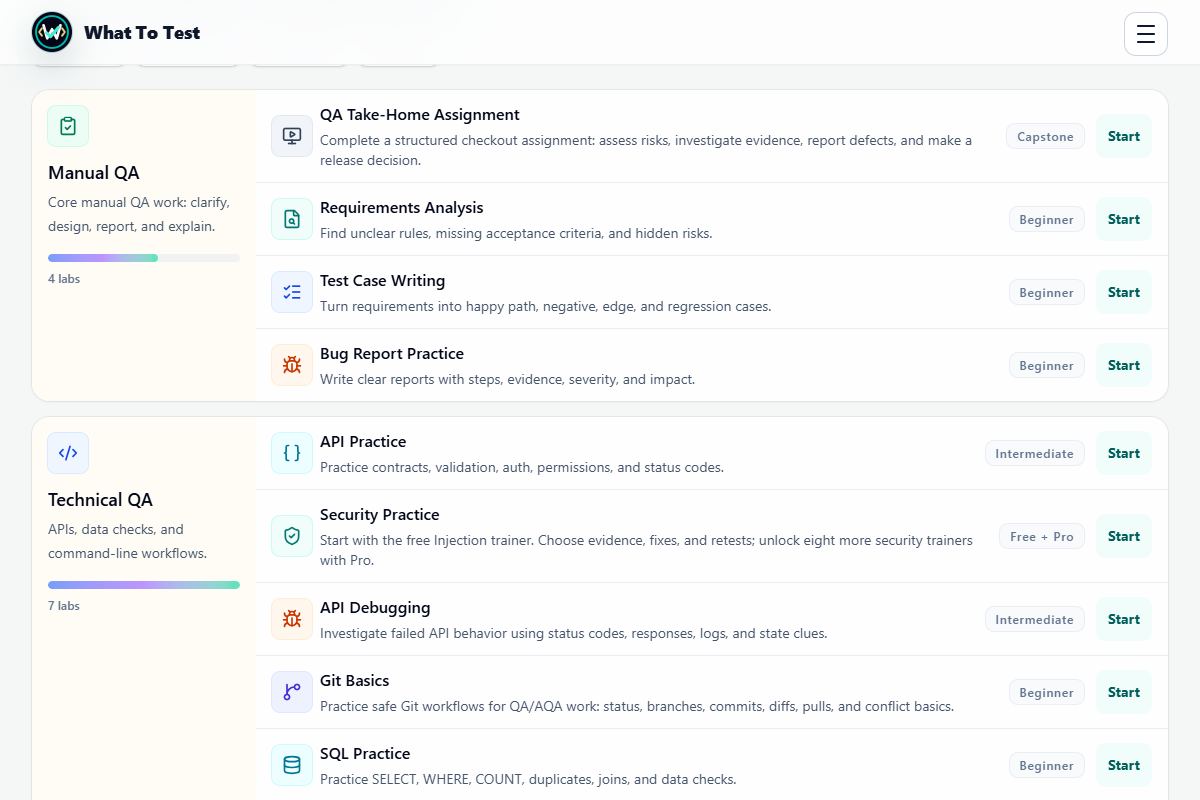
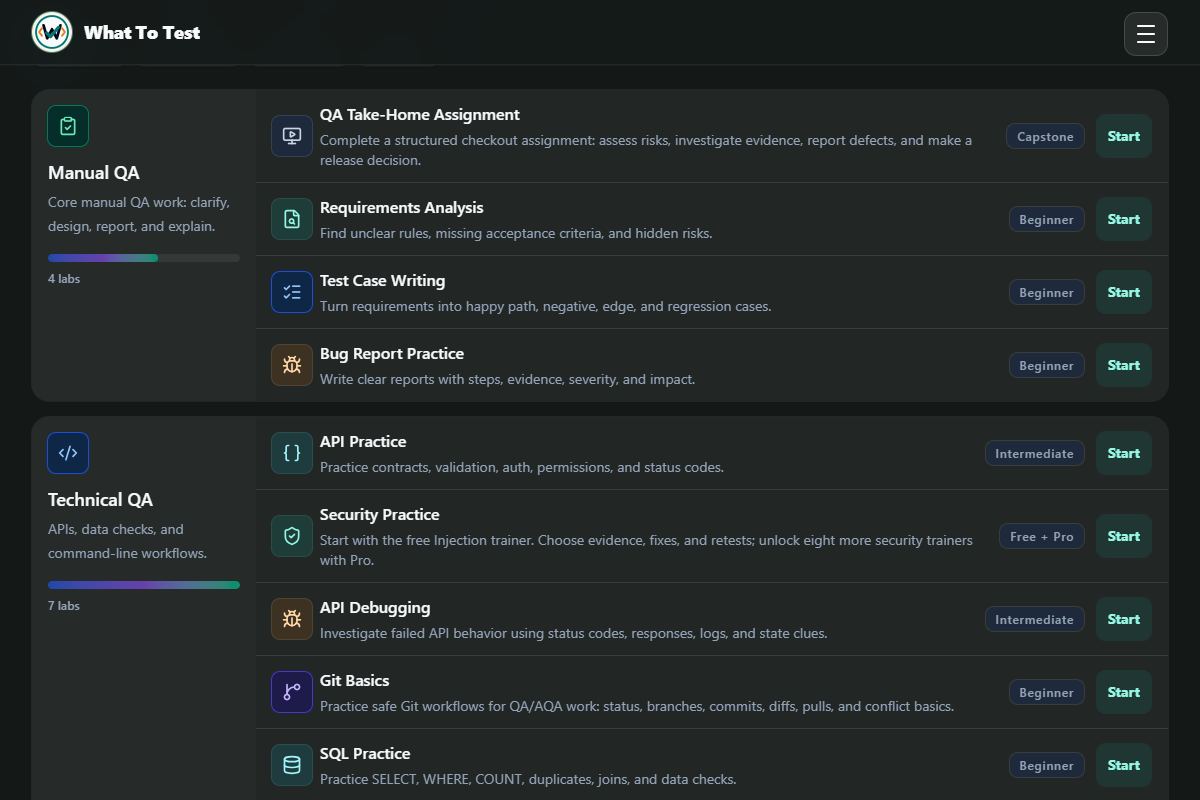
Labs directory

What to do

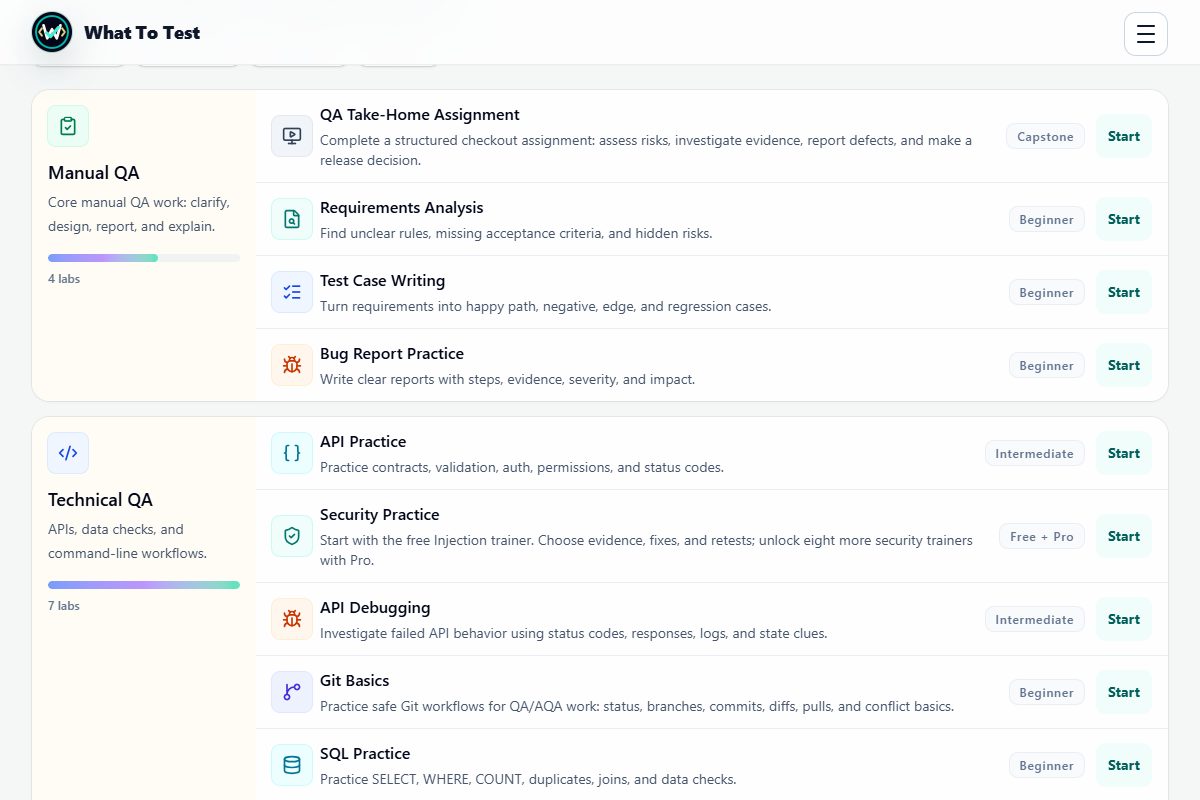
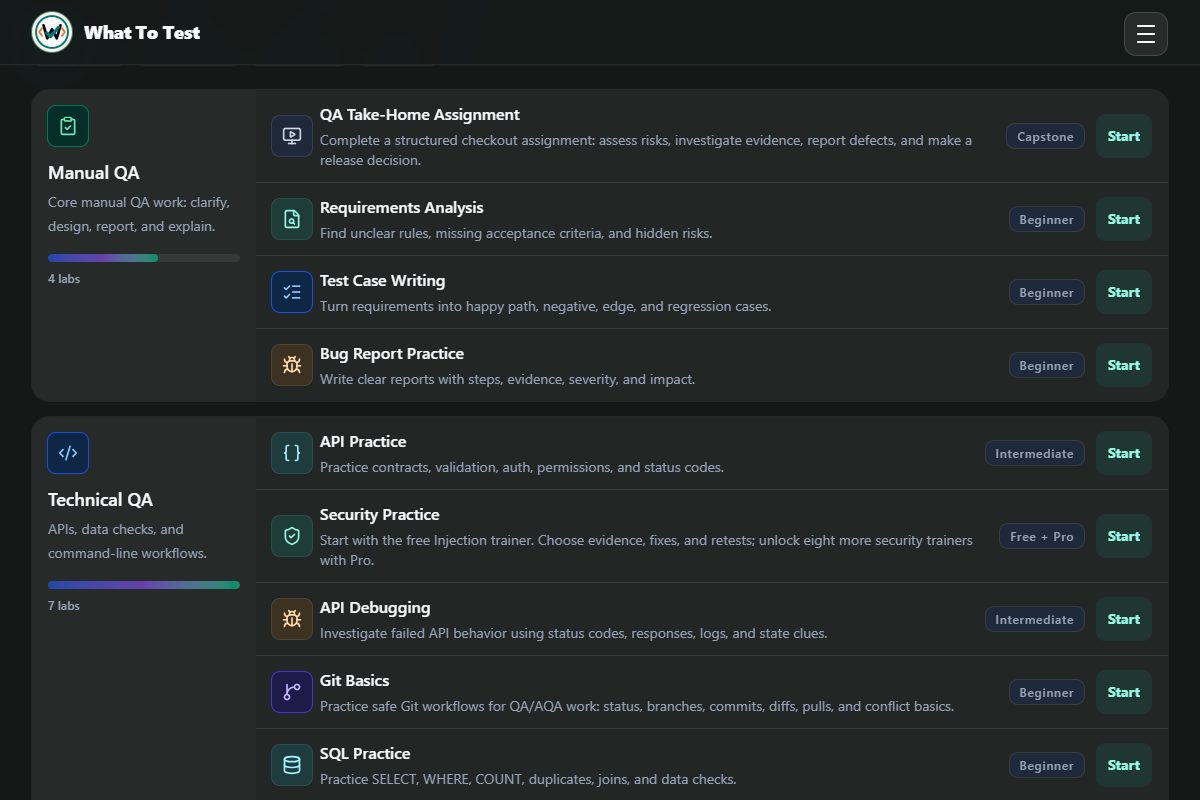
Browse Manual QA, Technical QA, Automation, or Interview and press Start.

What you will see

A directory entry opens the relevant practice section or trainer; level labels help choose your starting point.

Open this feature
Labs directory: The lab directory and its Start actions.

The lab directory and its Start actions.

Open the screenshot to view it full size. Example session.
1.4

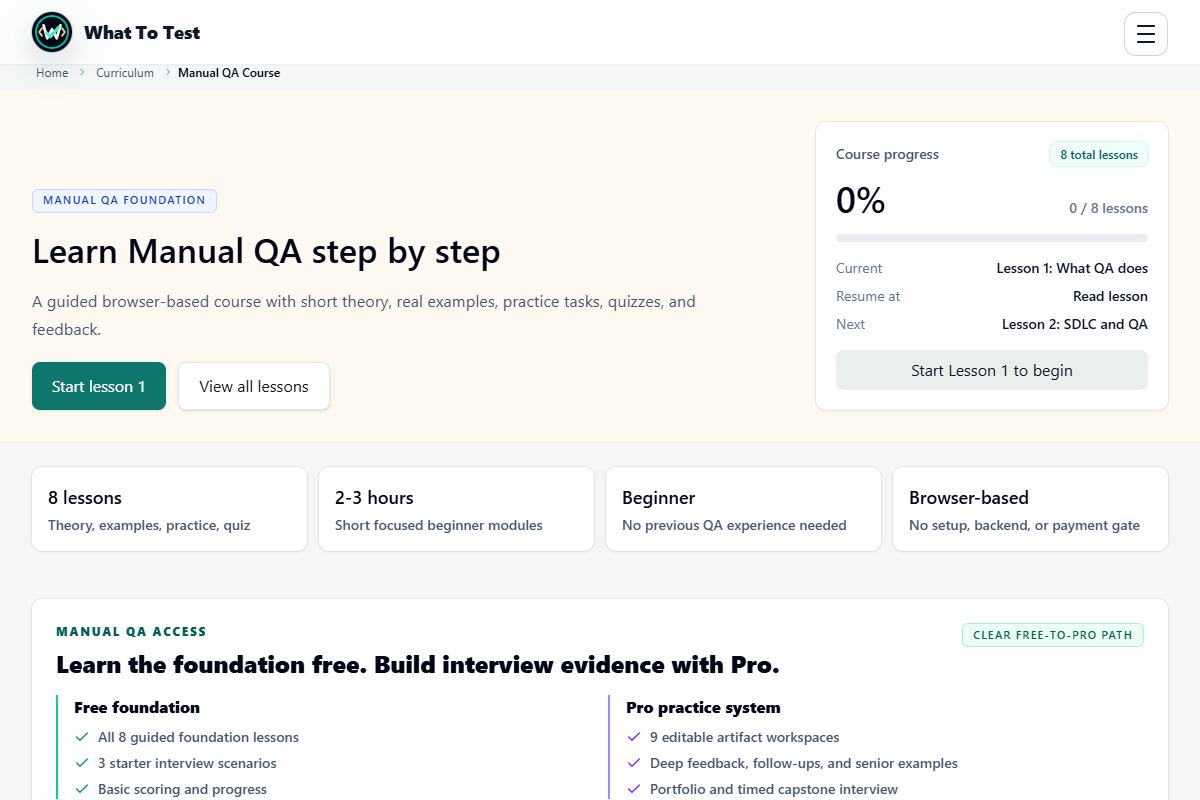
Manual QA course

What to do

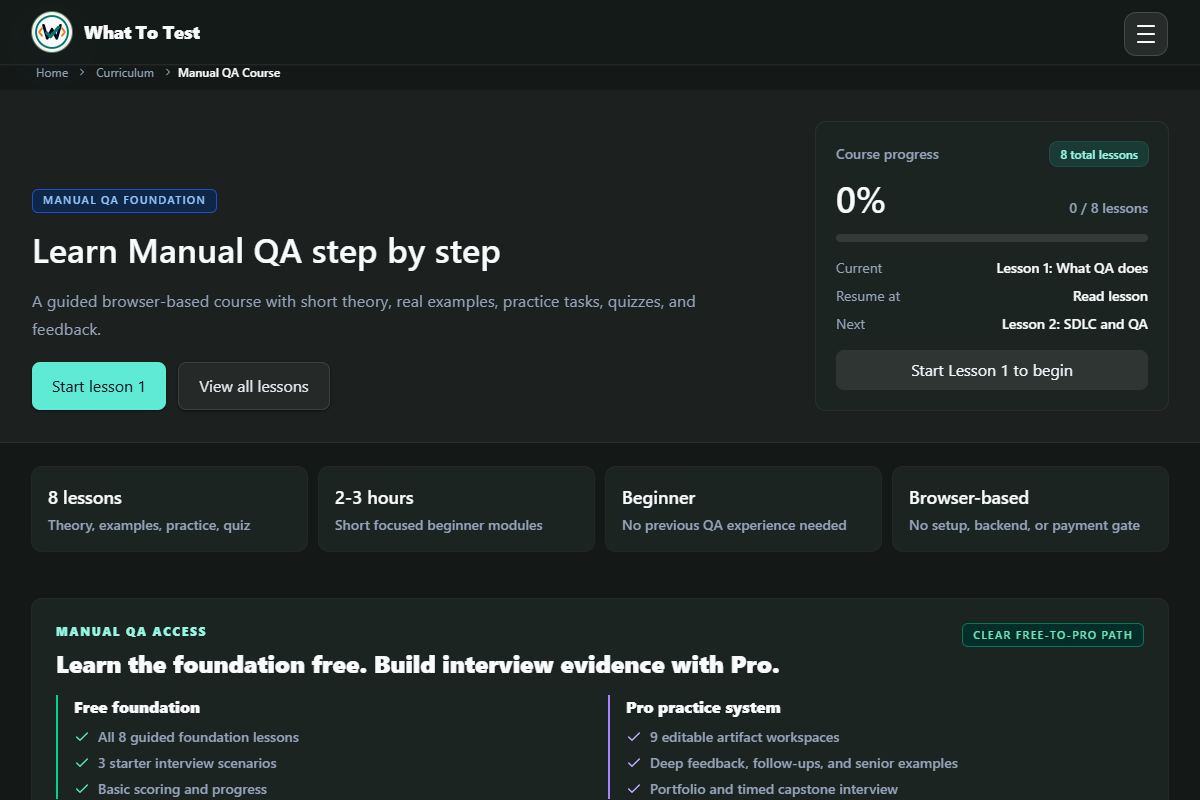
Read a lesson, complete its practice and quiz checks, then complete the lesson.

What you will see

The roadmap records your progress and unlocks the next lesson when its requirements are met.

Open this feature
Manual QA course: Course roadmap, lesson content, and completion workflow.

Course roadmap, lesson content, and completion workflow.

Open the screenshot to view it full size. Example session.
2. Manual QA practice

Expand

2.1

Requirements analysis

What to do

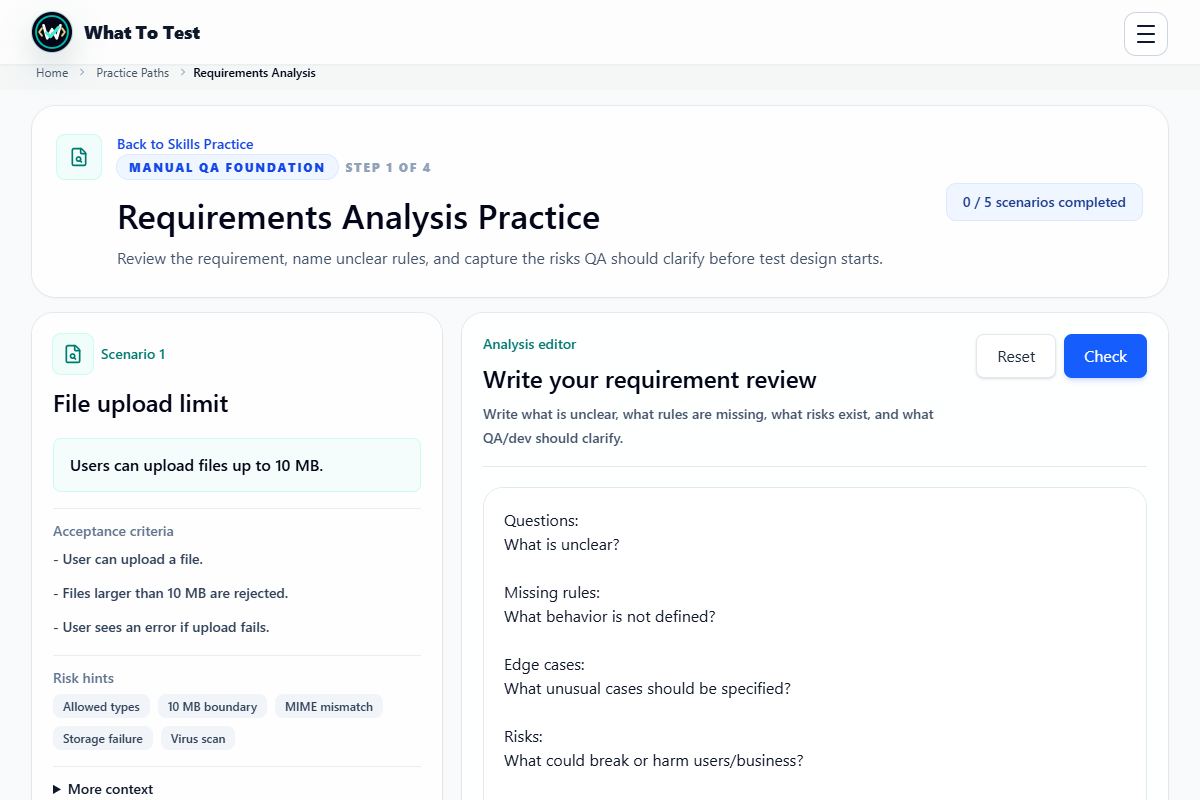
Review a requirement and write questions, missing rules, edge cases, and risks. Press Check analysis.

What you will see

Feedback helps identify what needs clarification before designing tests.

Open this feature
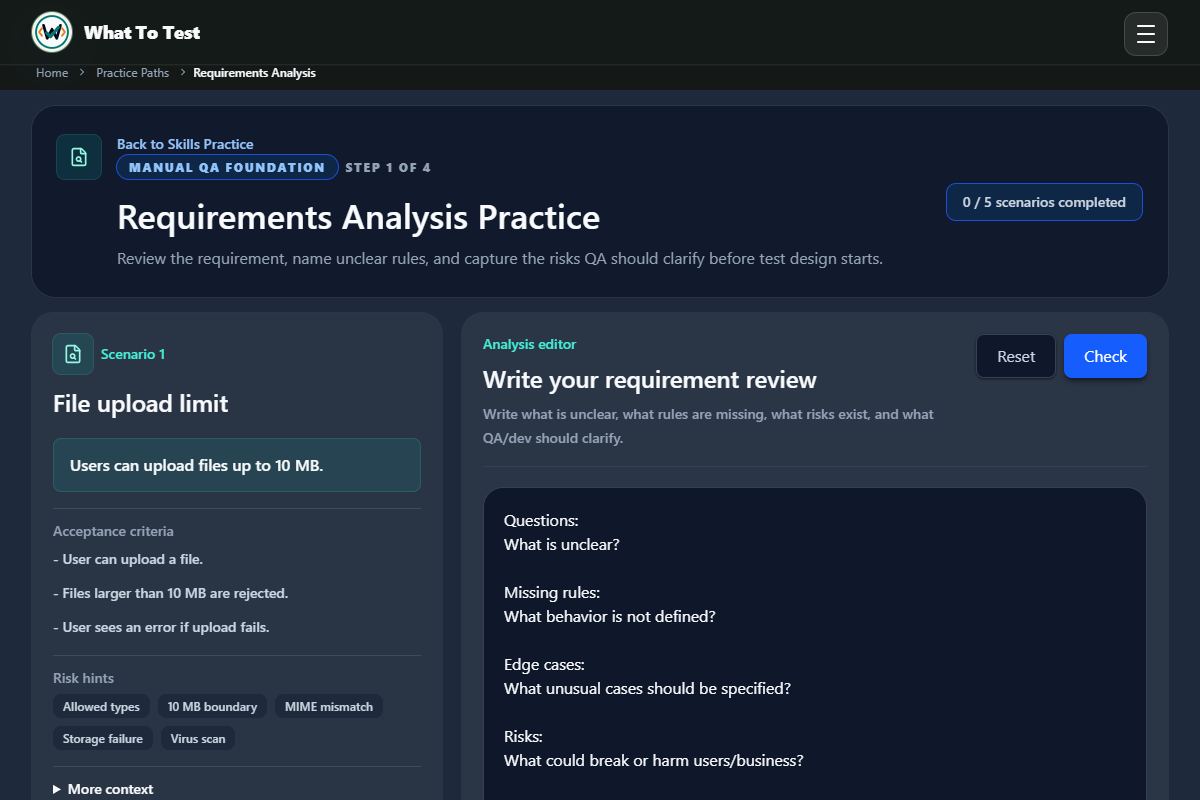
Requirements analysis: A requirement, risk hints, and the analysis editor.

A requirement, risk hints, and the analysis editor.

Open the screenshot to view it full size. Example session.
2.2

Test case design

What to do

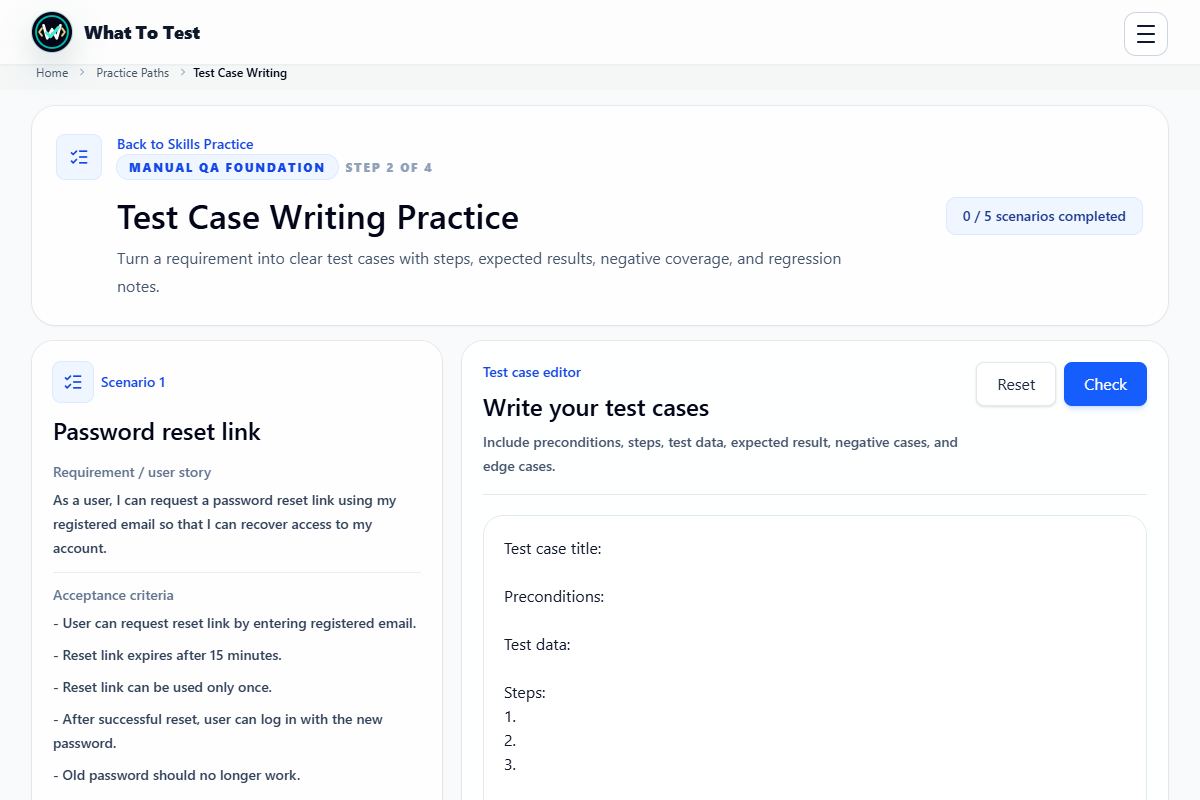
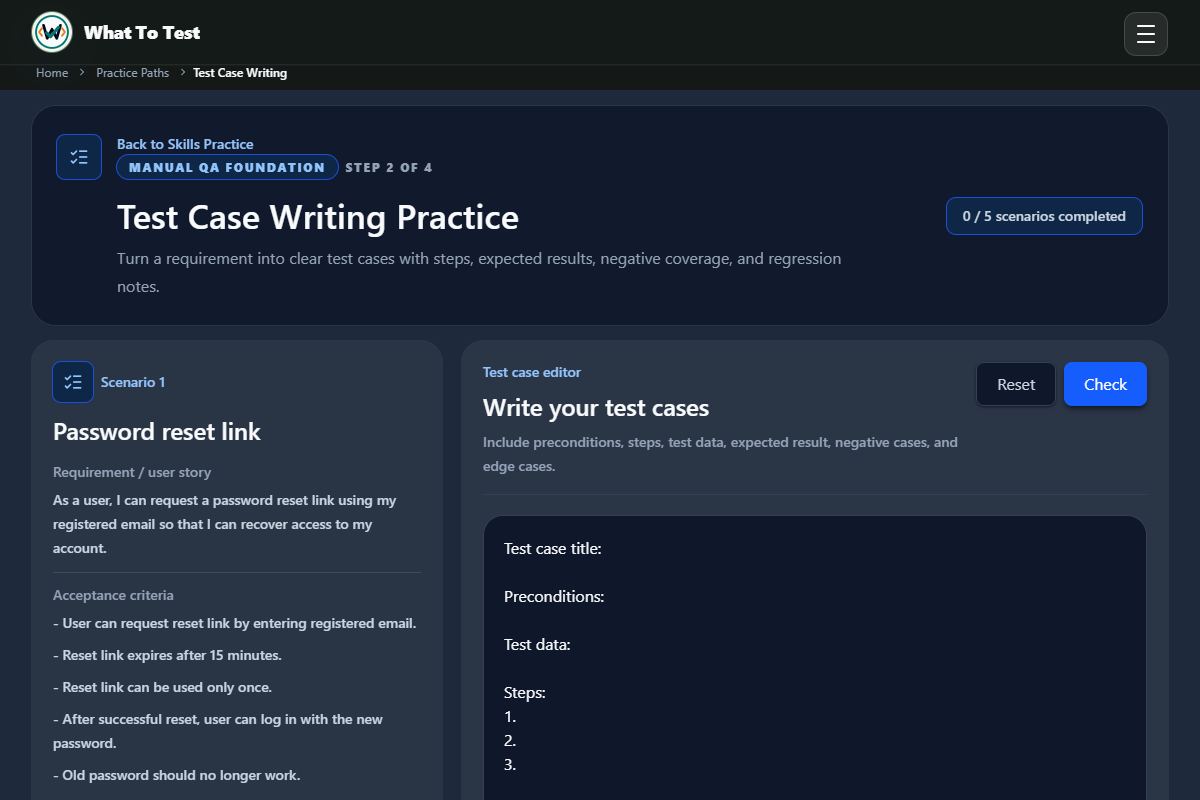
Choose a scenario and write positive, negative, boundary, and regression cases with expected results.

What you will see

Check your coverage, review gaps, and improve the same scenario.

Open this feature
Test case design: Scenario context and the test case editor.

Scenario context and the test case editor.

Open the screenshot to view it full size. Example session.
2.3

Bug reports

What to do

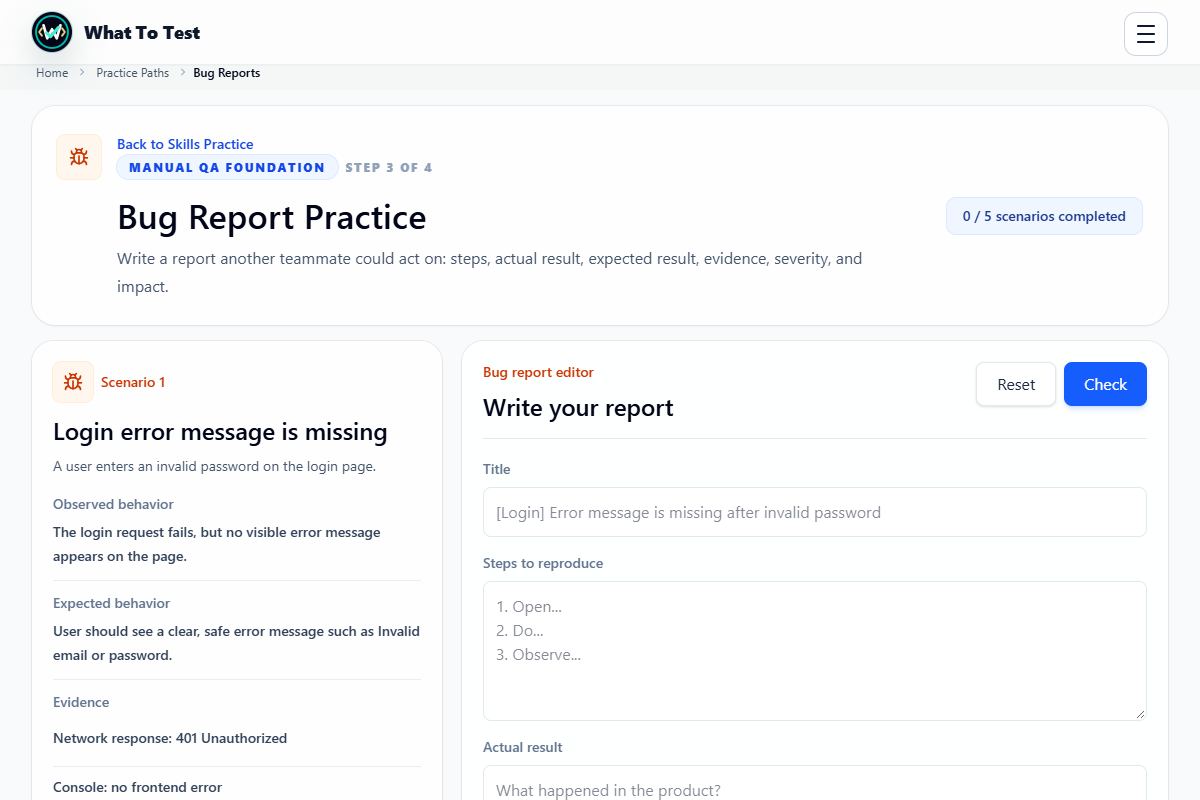
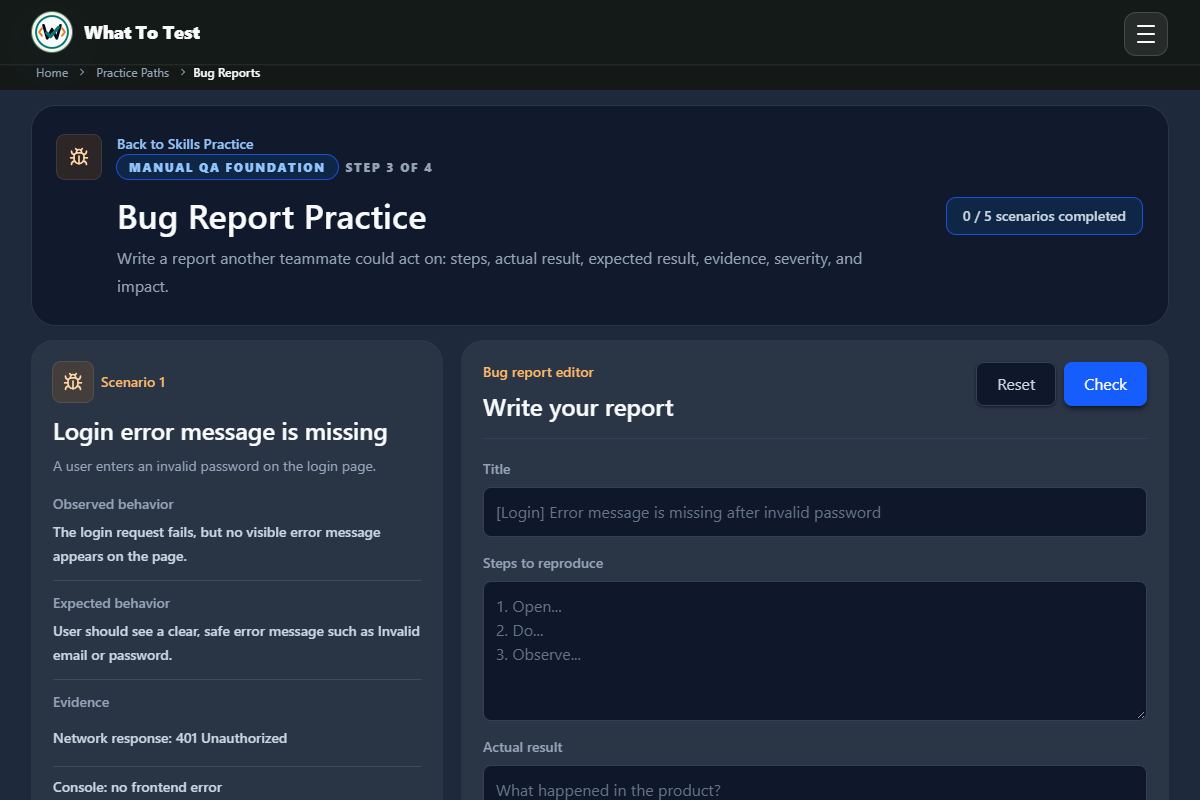
Fill in the title, reproduction steps, actual and expected results, environment, and evidence.

What you will see

The review highlights missing report details that would prevent another person from investigating the defect.

Open this feature
Bug reports: The defect scenario and structured bug report fields.

The defect scenario and structured bug report fields.

Open the screenshot to view it full size. Example session.
3. Technical QA and security

Expand

3.1

API practice and sandbox

What to do

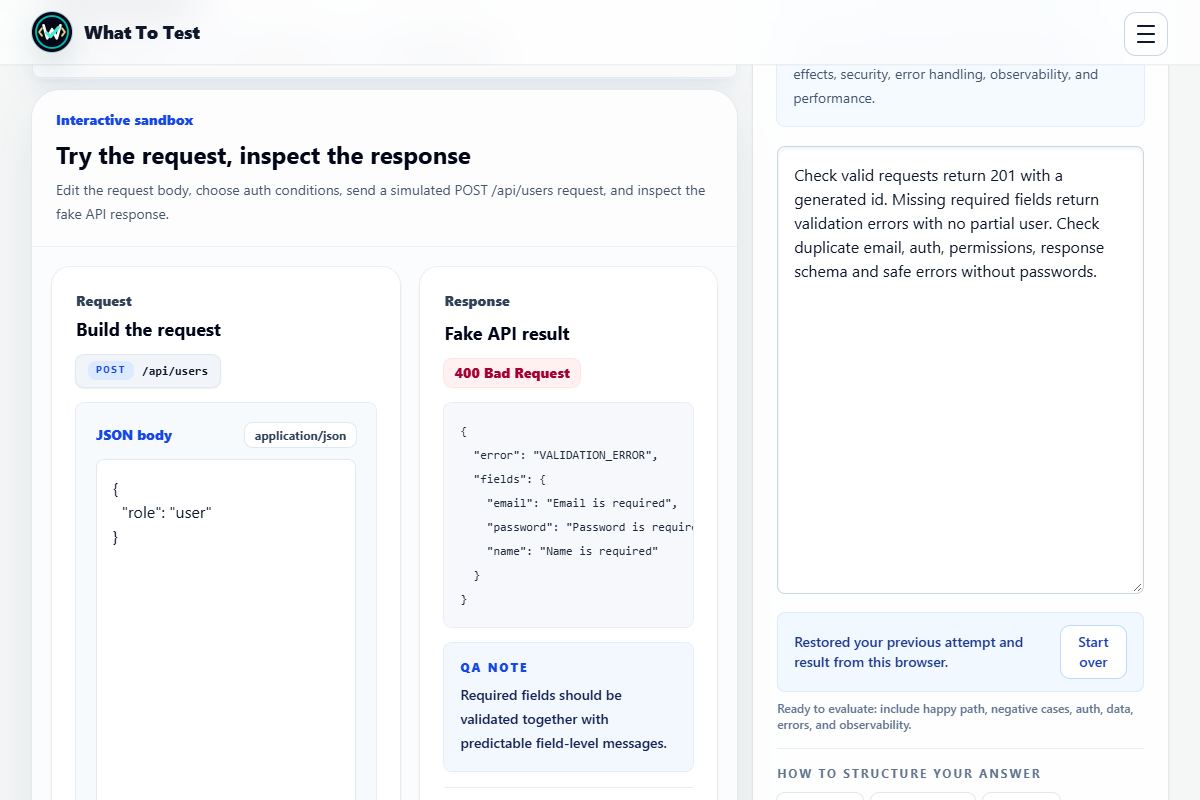
Choose an endpoint, run a preset or edit its simulated request, inspect the response, and write test ideas.

What you will see

Check coverage to find missing contract, validation, authorization, data, and error-handling checks. Access labels distinguish free and Pro trainers.

Open this feature
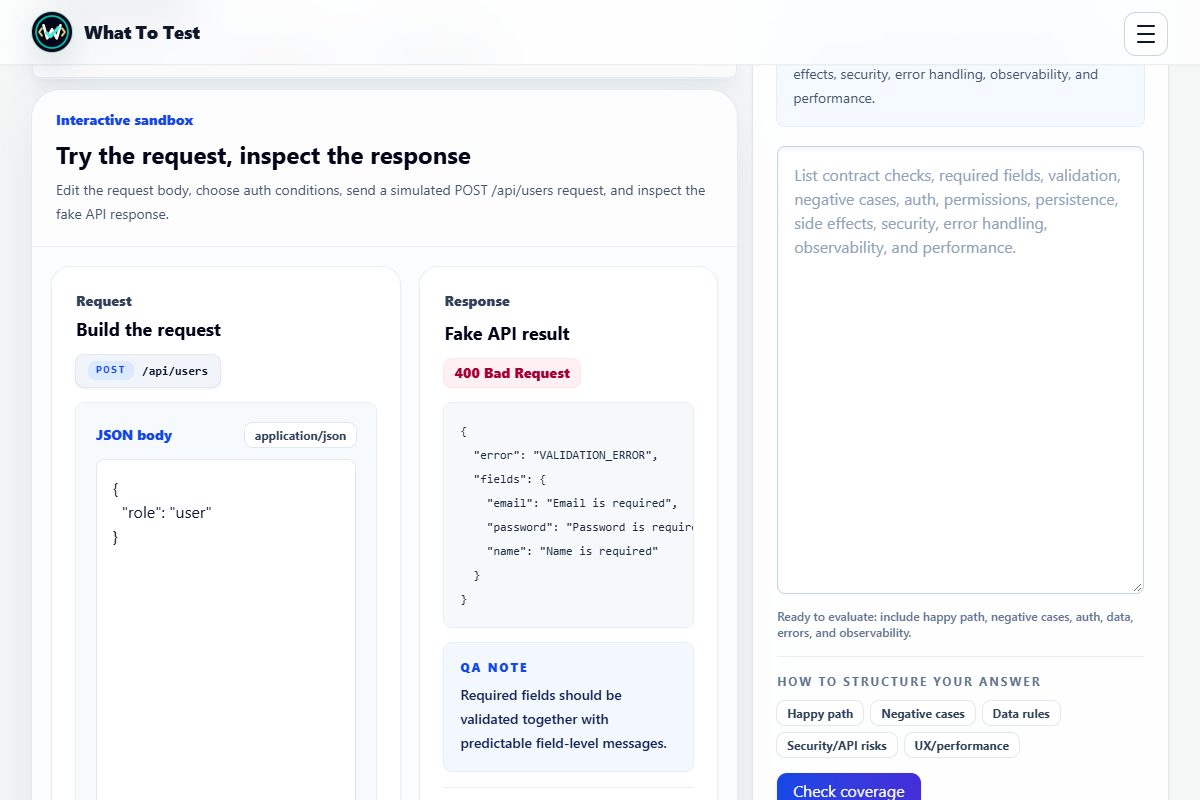
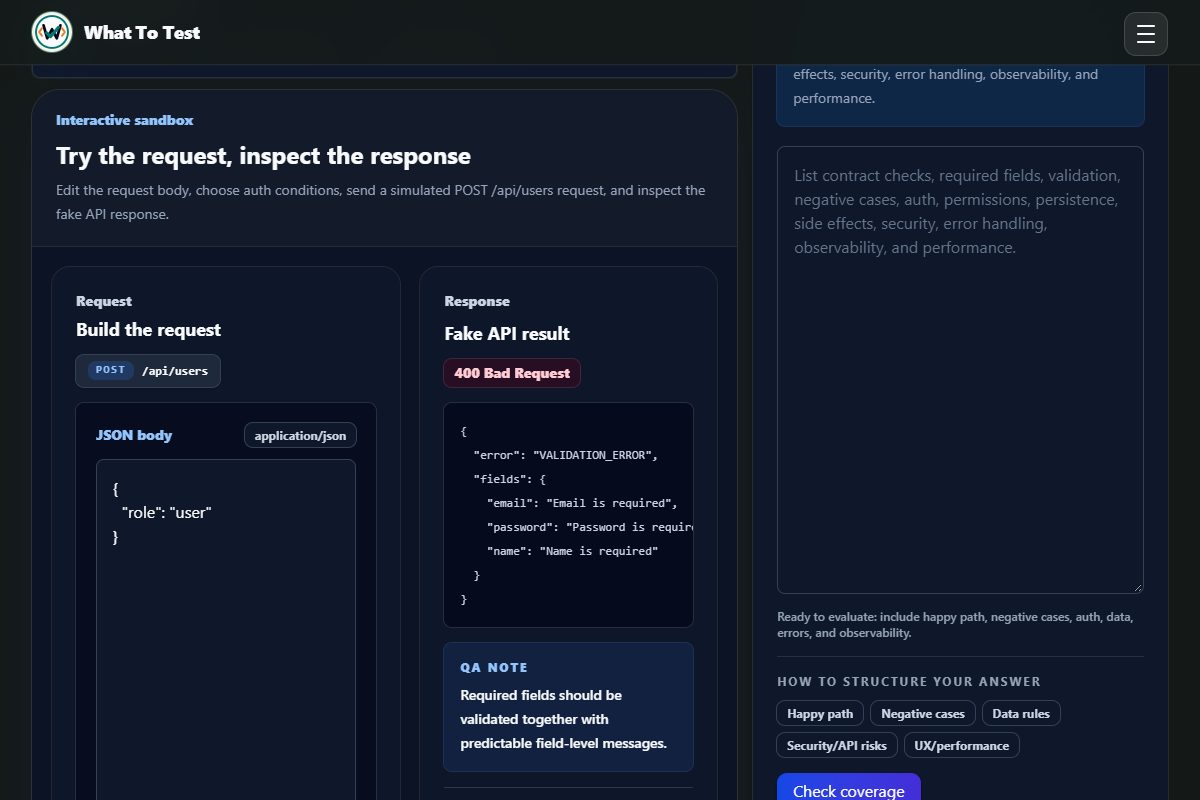
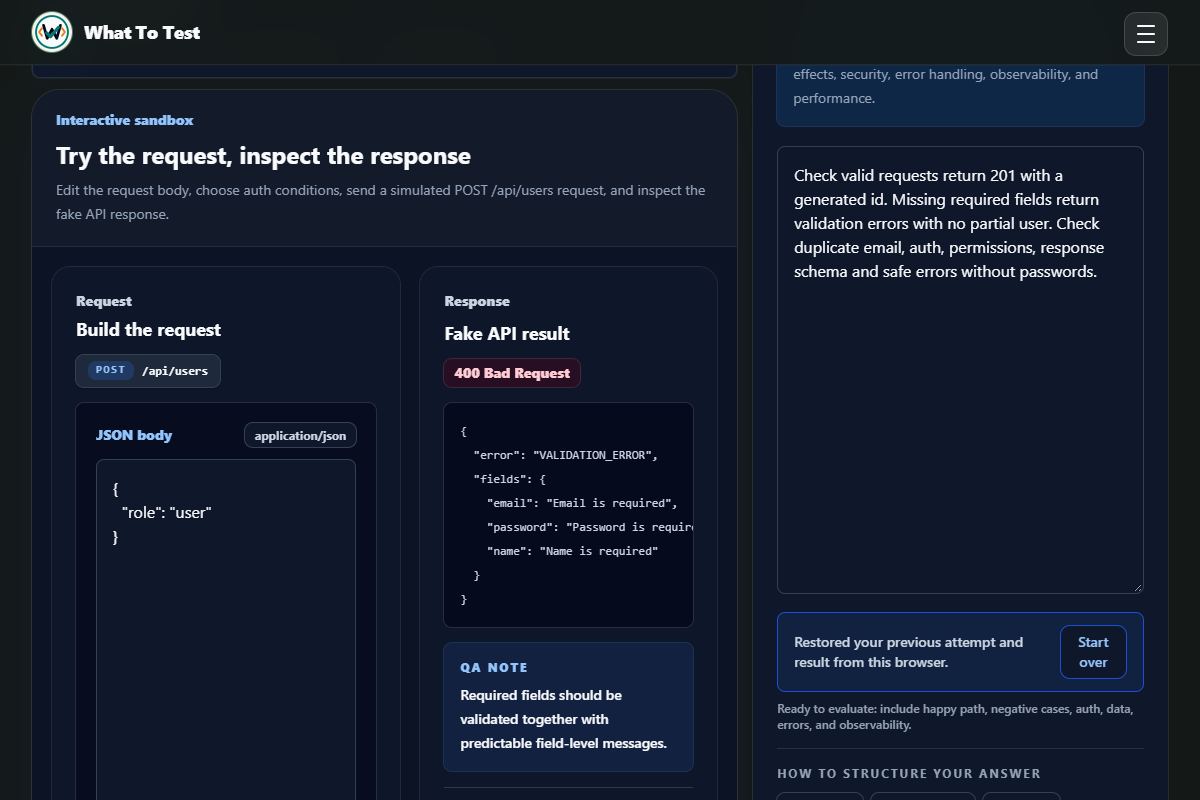
API practice and sandbox: Free Create User sandbox with a real simulated validation response.

Free Create User sandbox with a real simulated validation response.

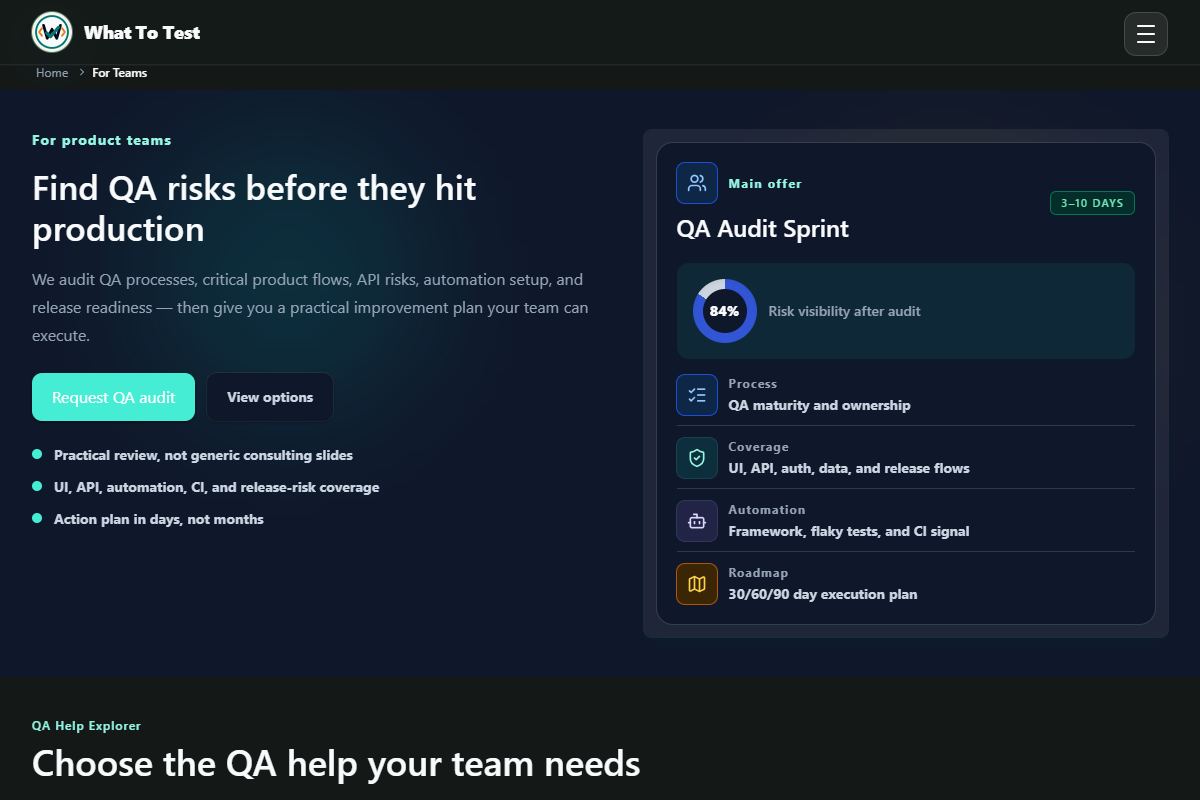
Open the screenshot to view it full size. Example session.
3.2

Security investigations

What to do

Start with the free Injection trainer. Compare evidence, select a fix, then run and interpret each retest.

What you will see

Finish to save your review in this browser. Reopen it from Progress or the home snapshot; completion counts are not readiness scores. Other trainers require Pro; fixtures are inert simulations.

Open this feature
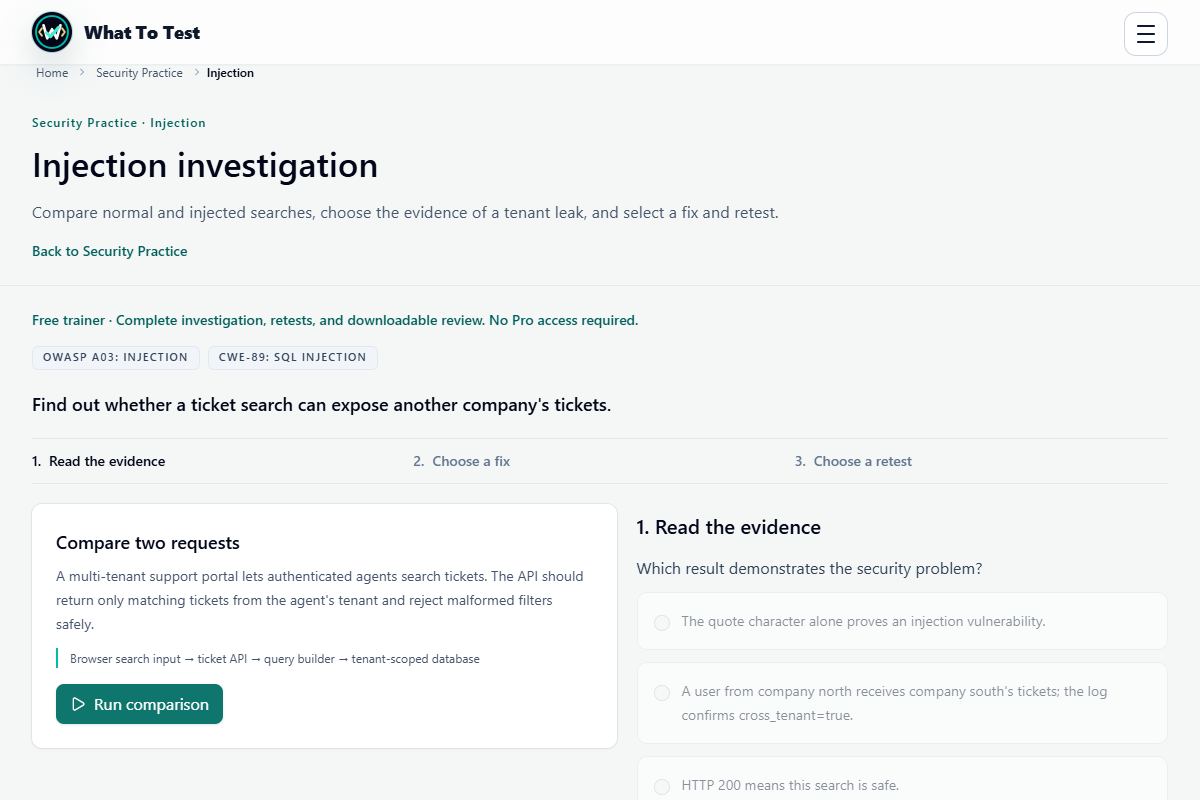
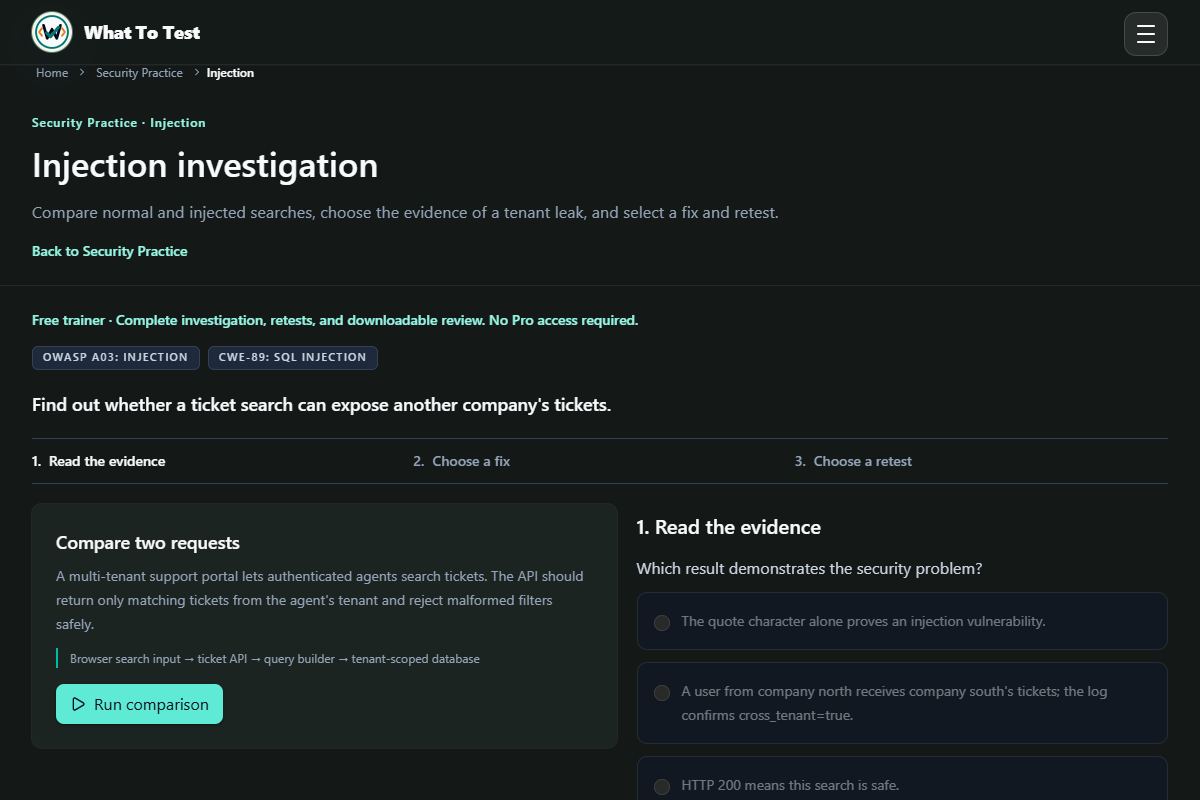
Security investigations: Free Injection trainer: compare evidence before selecting a fix and retests.

Free Injection trainer: compare evidence before selecting a fix and retests.

Open the screenshot to view it full size. Example session.
3.3

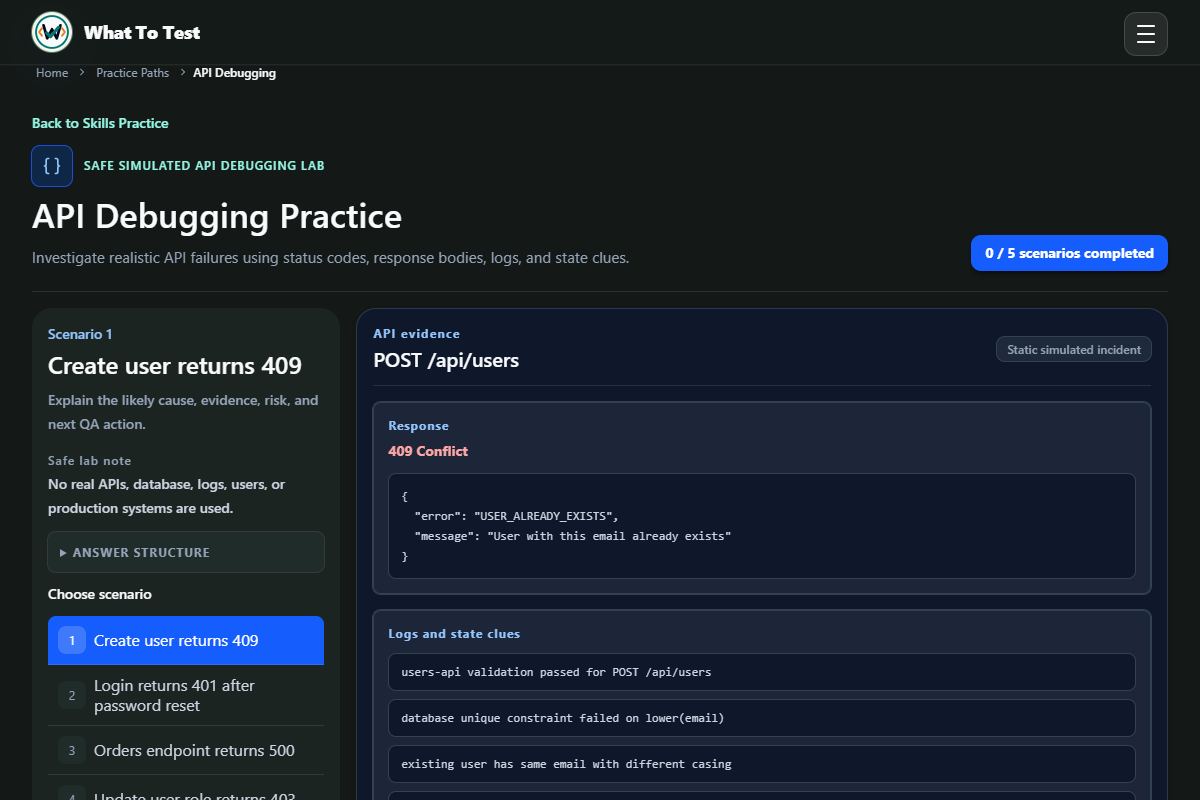
API debugging

What to do

Choose an incident, compare status codes, response data, logs, and state clues, then write an investigation.

What you will see

Check your explanation of the cause, supporting evidence, risk, and next QA action.

Open this feature
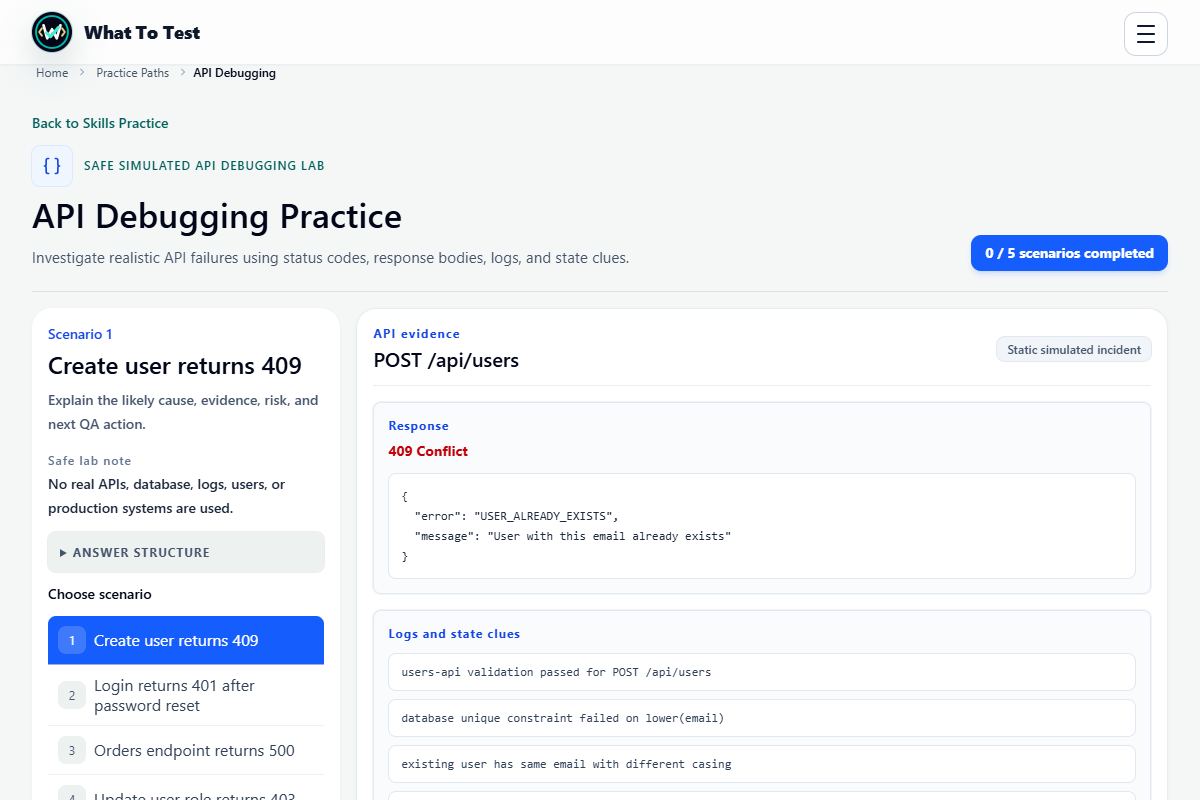
API debugging: An API incident with response data and state clues.

An API incident with response data and state clues.

Open the screenshot to view it full size. Example session.
3.4

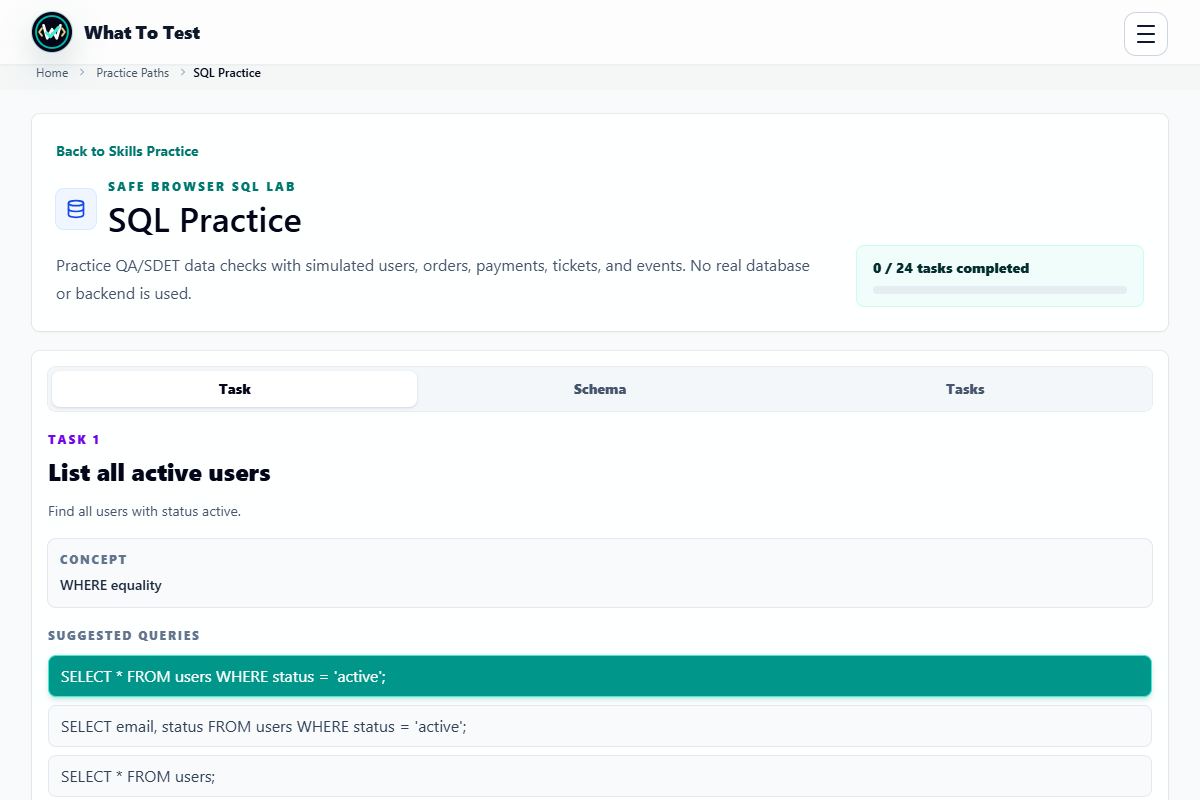
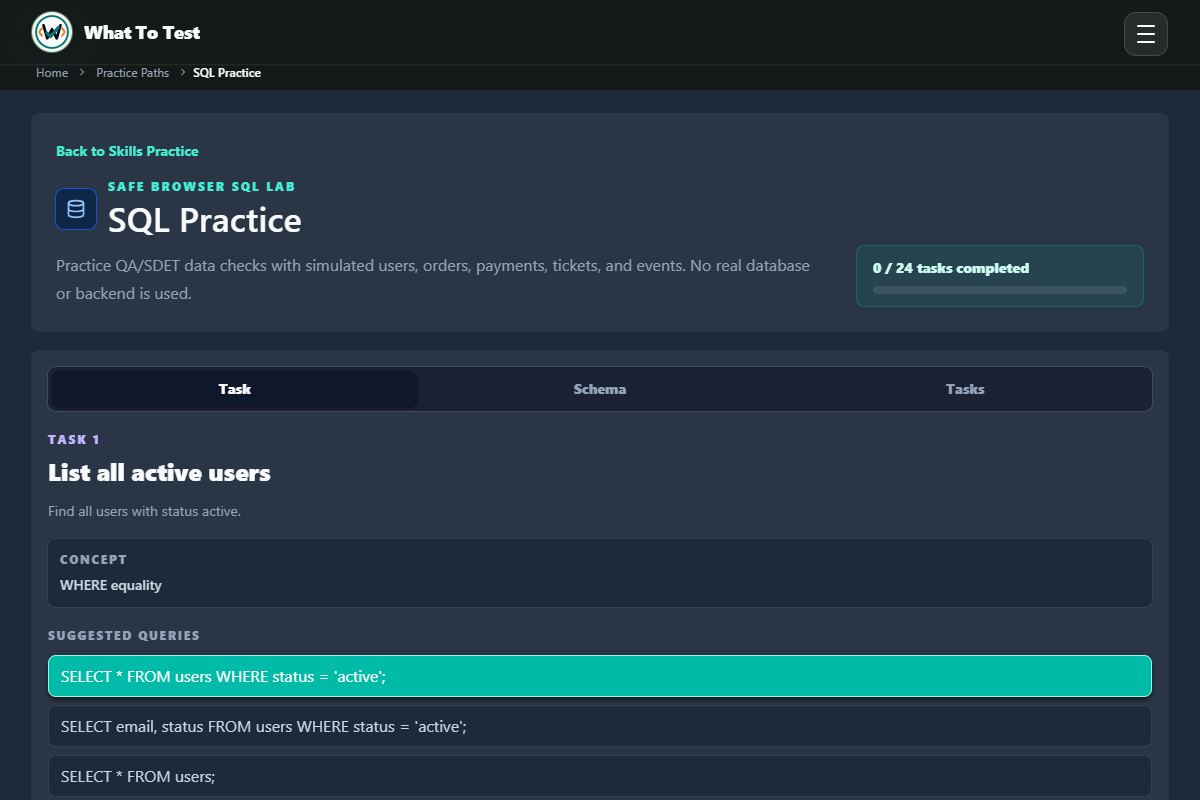
SQL practice

What to do

Read the data task, write a query, and run it against the simulated dataset.

What you will see

Compare returned rows with the task and use feedback to correct your query. No production database is involved.

Open this feature
SQL practice: SQL task, sample data, and query workspace.

SQL task, sample data, and query workspace.

Open the screenshot to view it full size. Example session.
3.5

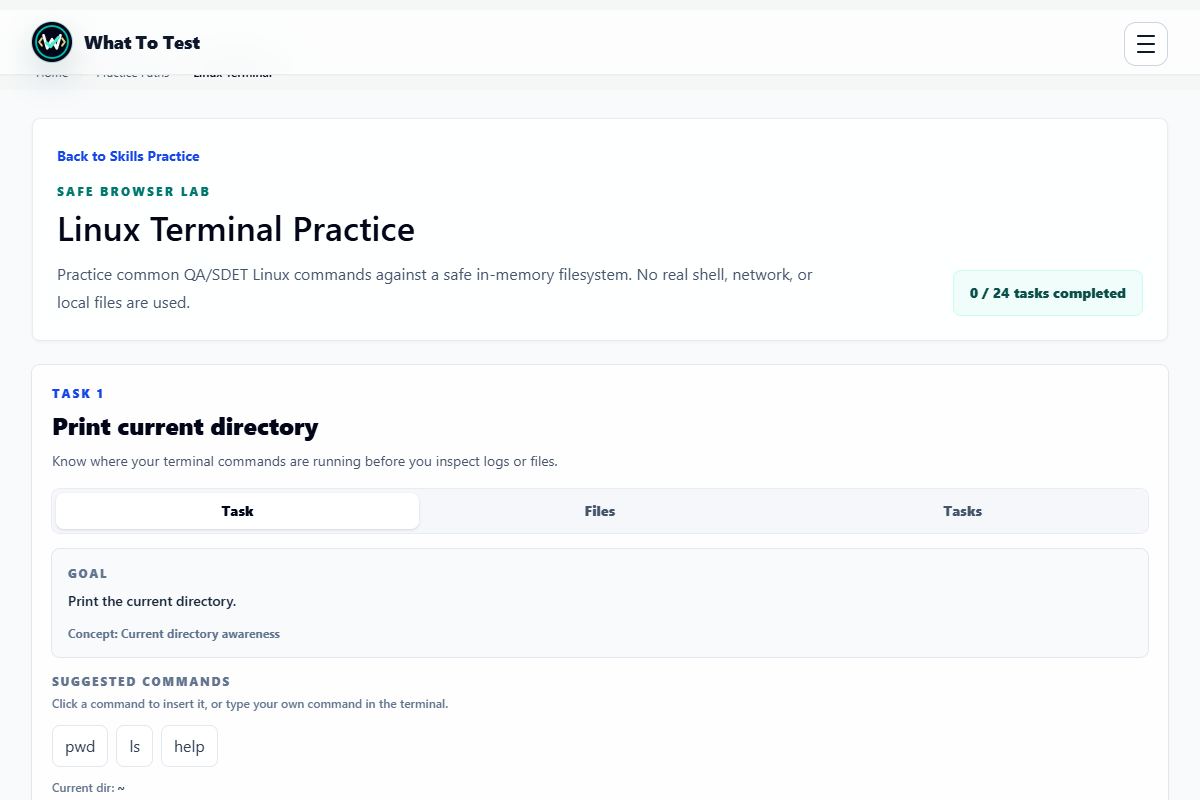
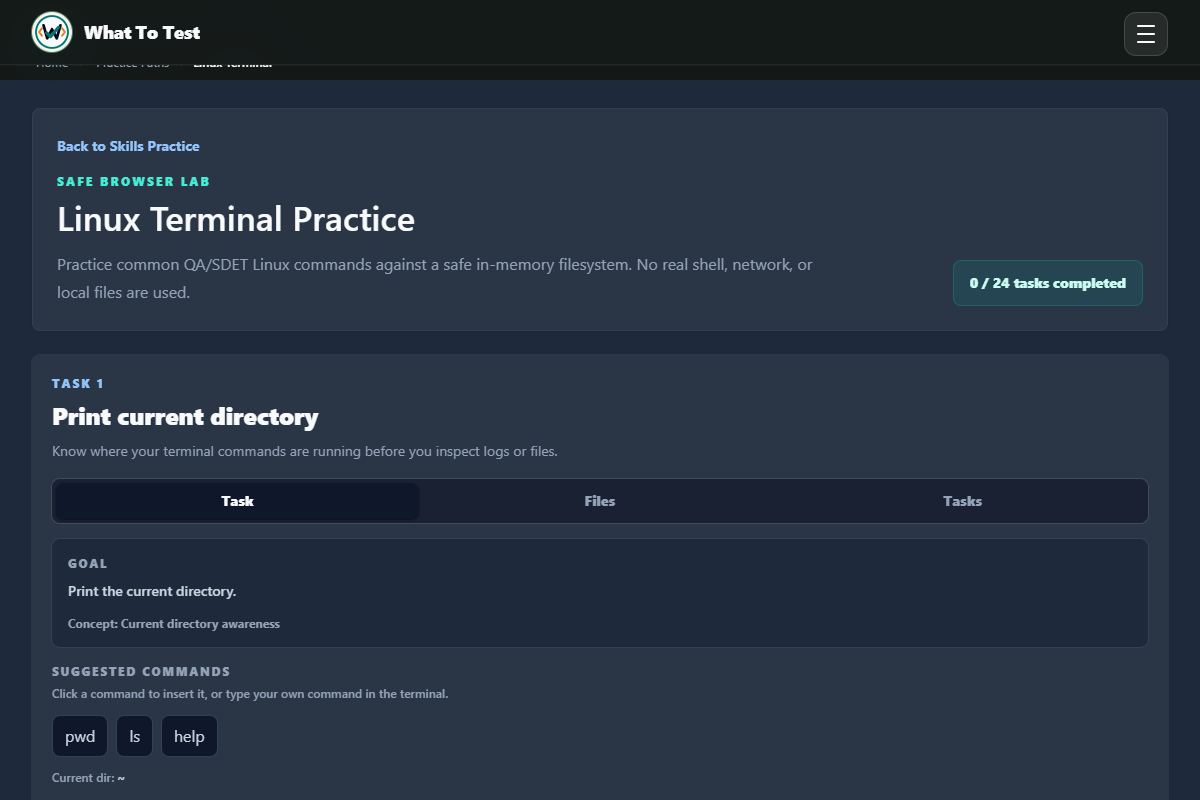
Linux terminal

What to do

Choose a task, enter a supported command, and inspect the simulated output.

What you will see

Practice file and directory workflows without running a real shell on your computer.

Open this feature
Linux terminal: Task instructions and the safe simulated terminal.

Task instructions and the safe simulated terminal.

Open the screenshot to view it full size. Example session.
3.6

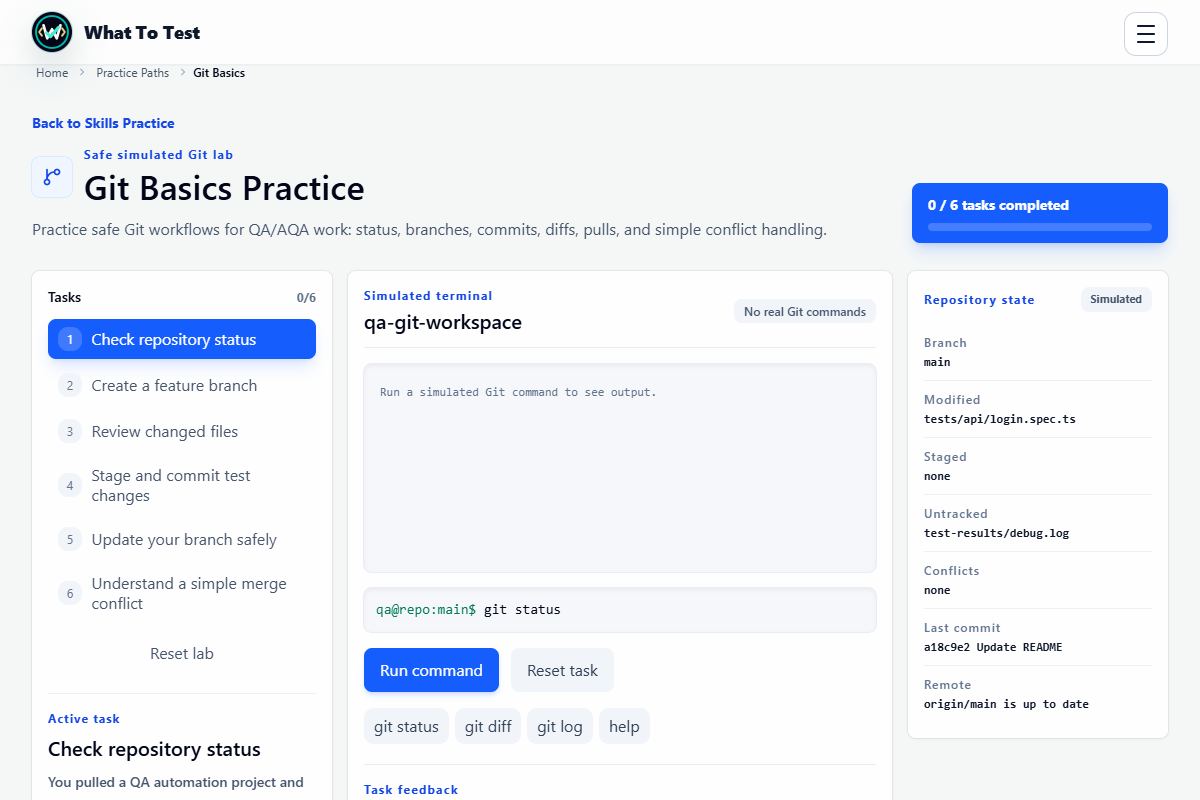
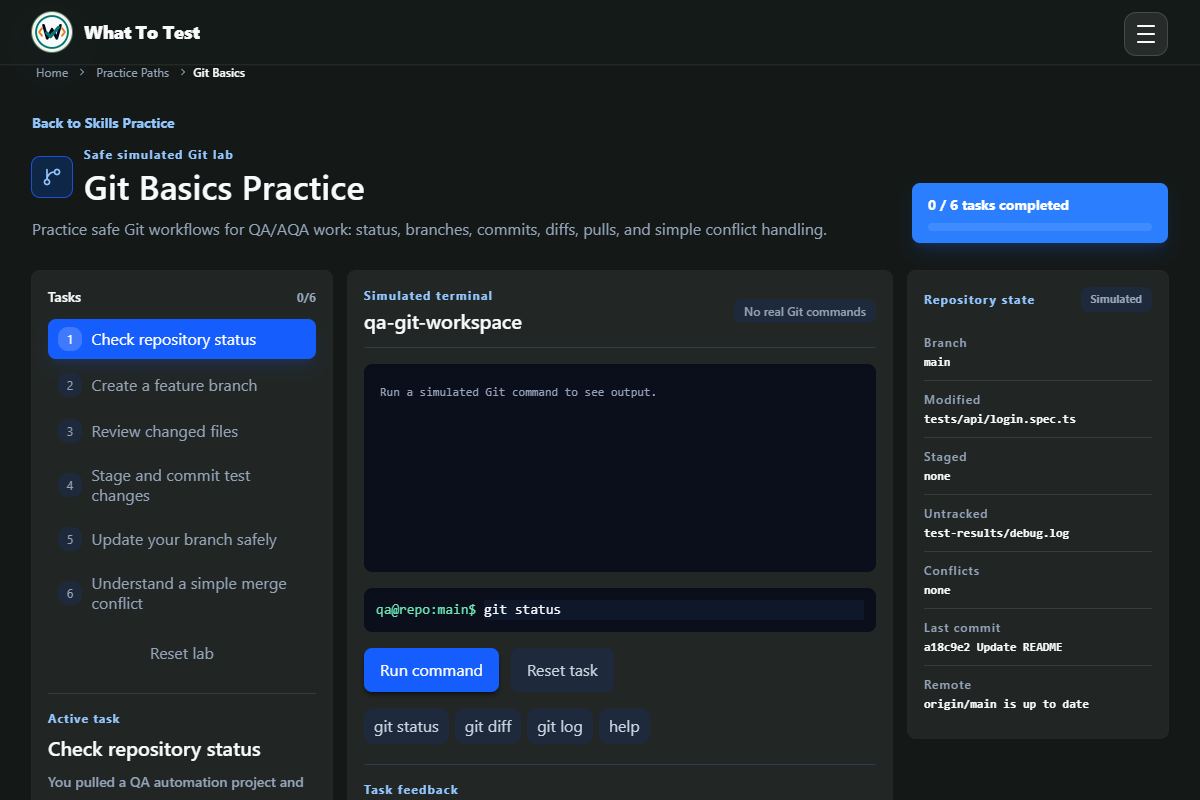
Git basics

What to do

Follow the scenario and choose or enter the requested safe Git workflow.

What you will see

Check repository state and feedback without changing a real repository.

Open this feature
Git basics: Git task and simulated repository workflow.

Git task and simulated repository workflow.

Open the screenshot to view it full size. Example session.
3.7

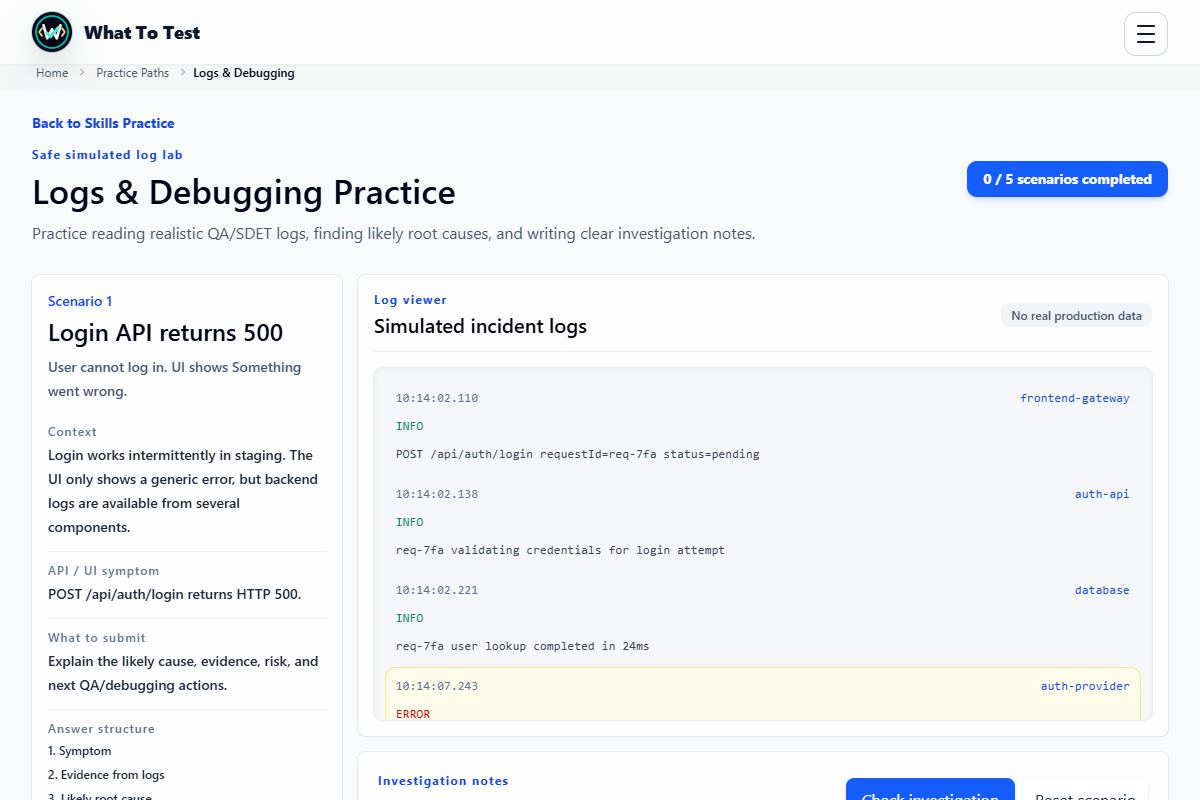
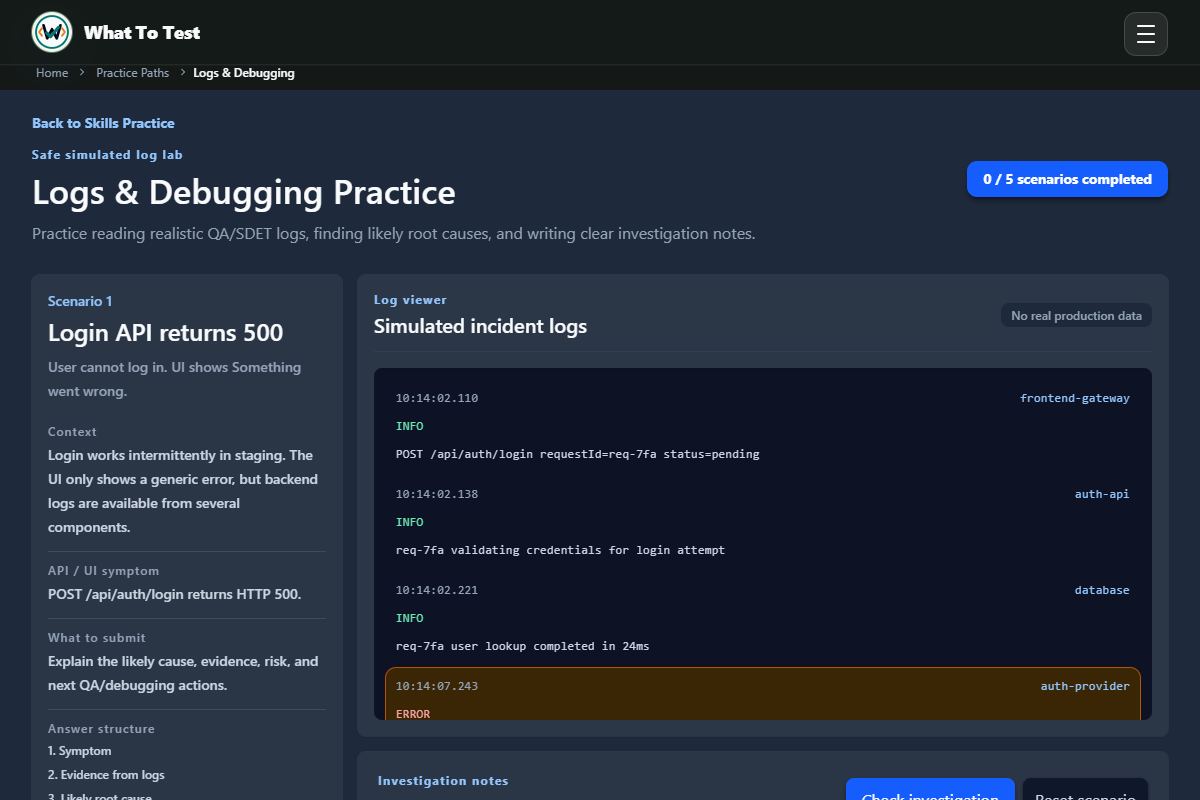
Logs and debugging

What to do

Correlate log entries, distinguish the symptom from its likely cause, and write investigation notes.

What you will see

Check the evidence, impact, and follow-up actions you included.

Open this feature
Logs and debugging: Correlated incident logs and investigation context.

Correlated incident logs and investigation context.

Open the screenshot to view it full size. Example session.
3.8

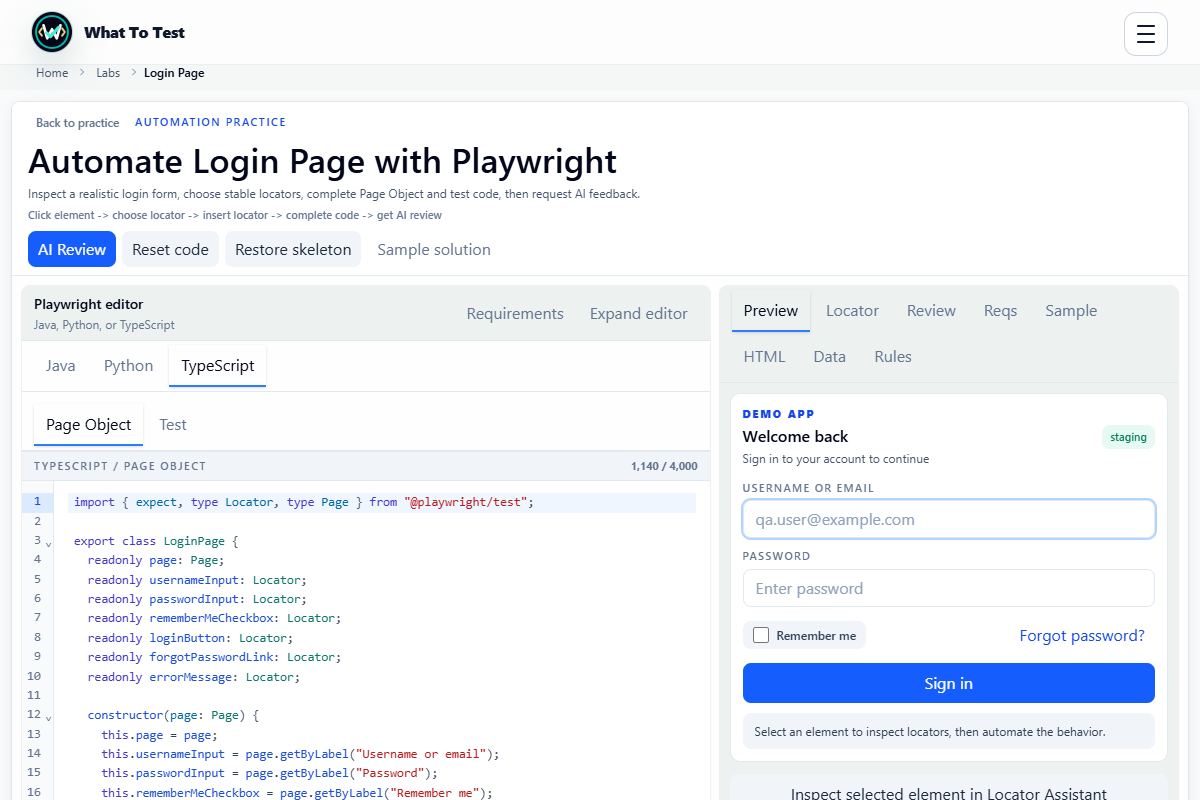
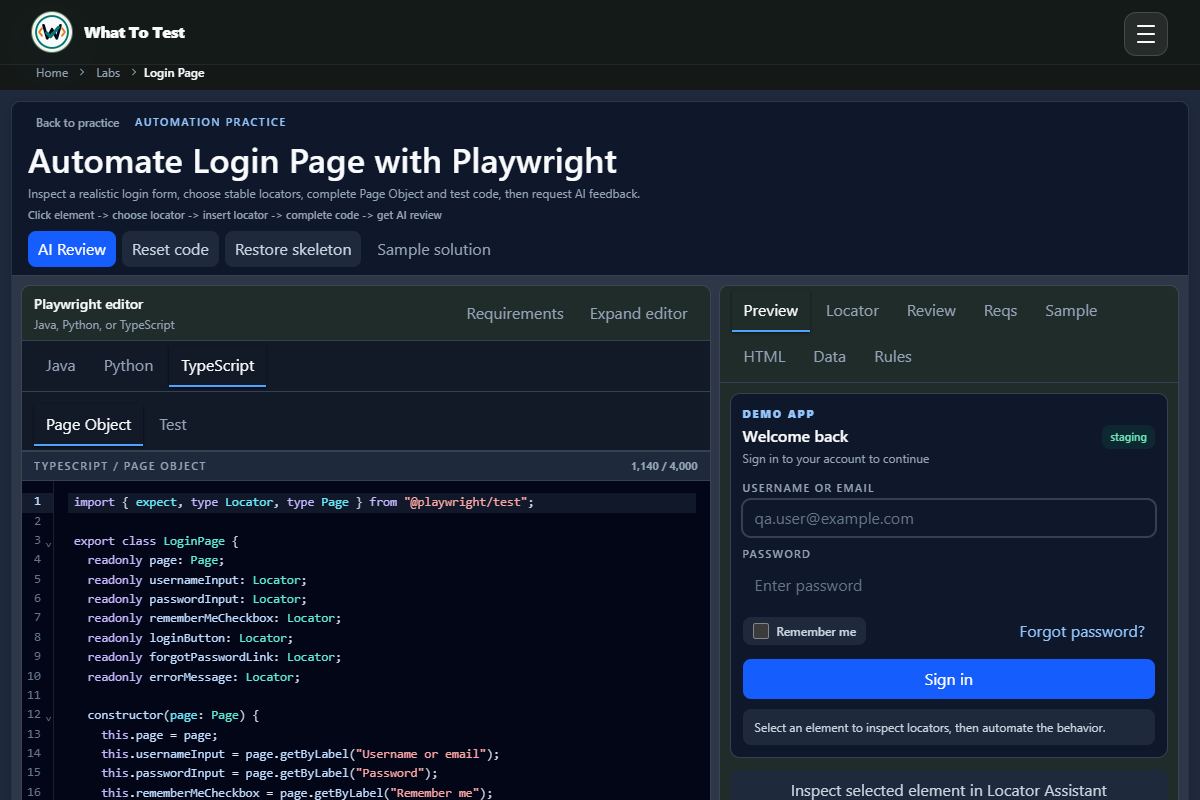
Automation practice

What to do

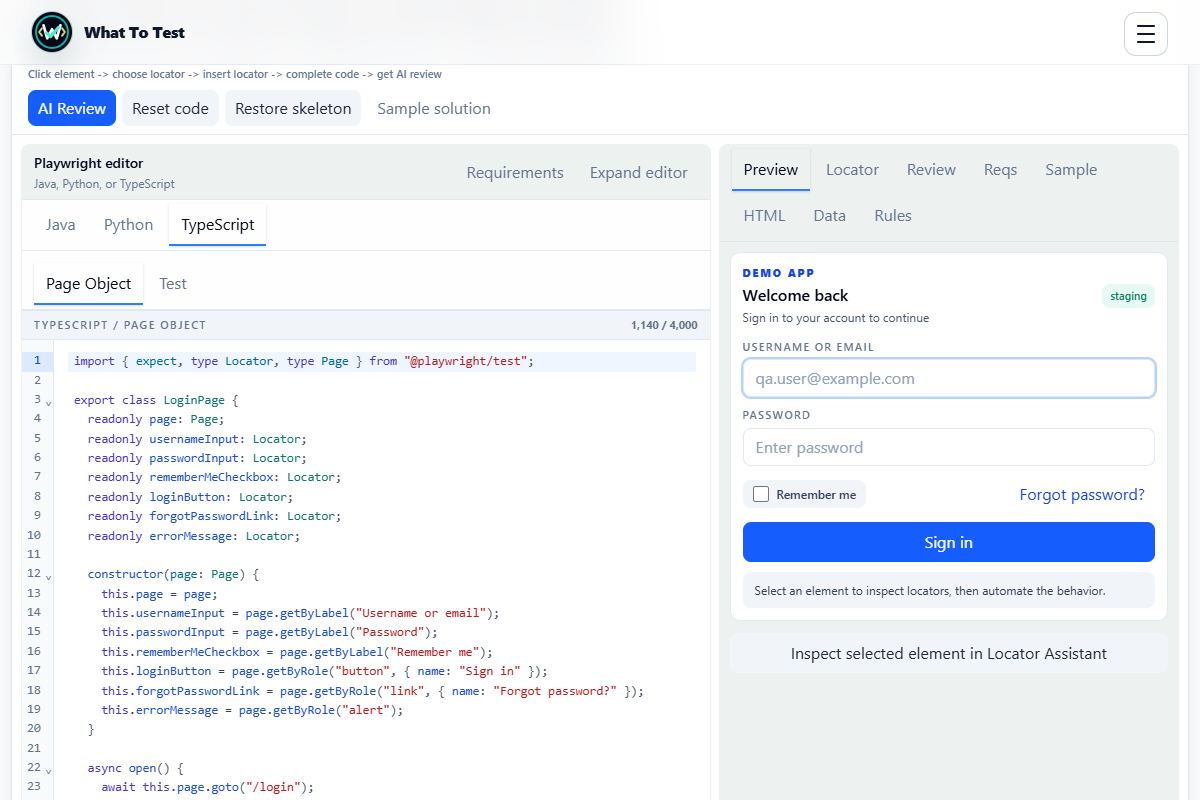
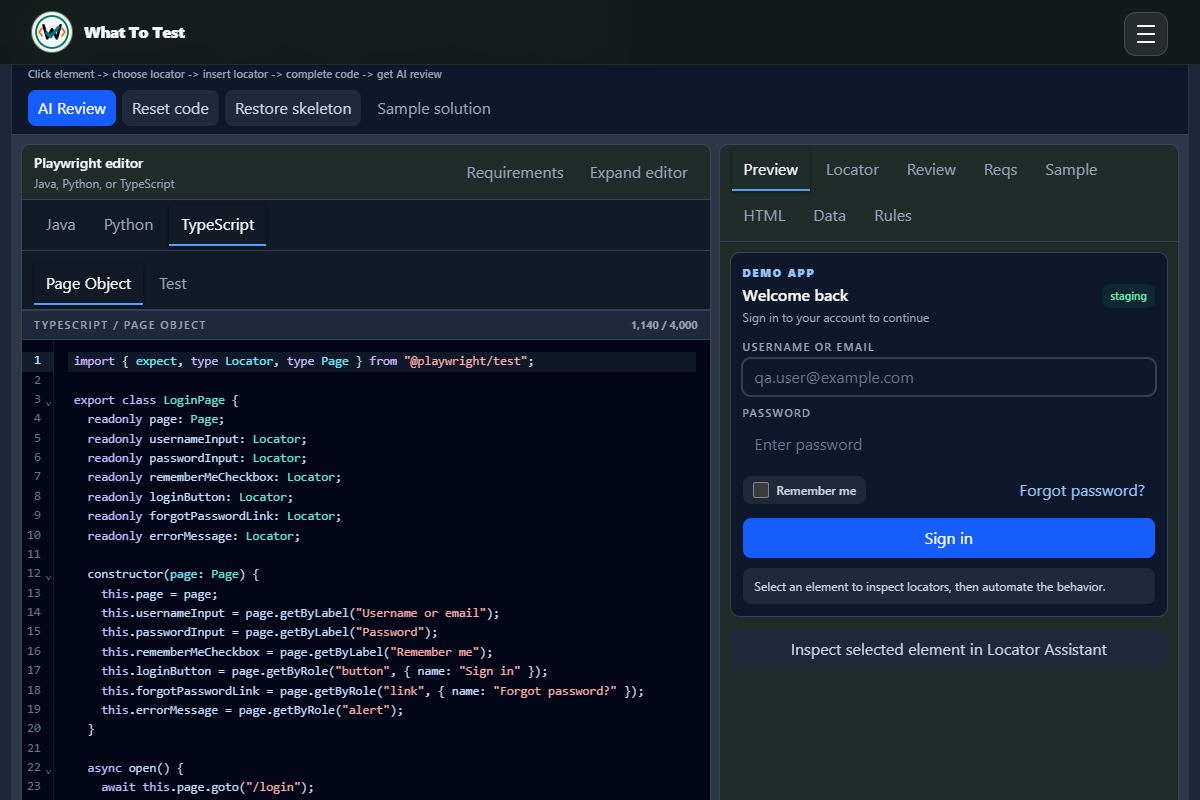
Review Playwright locators, assertions, Page Object structure, and the supplied automation tasks.

What you will see

Use the trainer feedback to strengthen automation coverage and code reasoning.

Open this feature
Automation practice: Playwright practice workspace and review controls.

Playwright practice workspace and review controls.

Open the screenshot to view it full size. Example session.
4. Interview and career practice

Expand

4.1

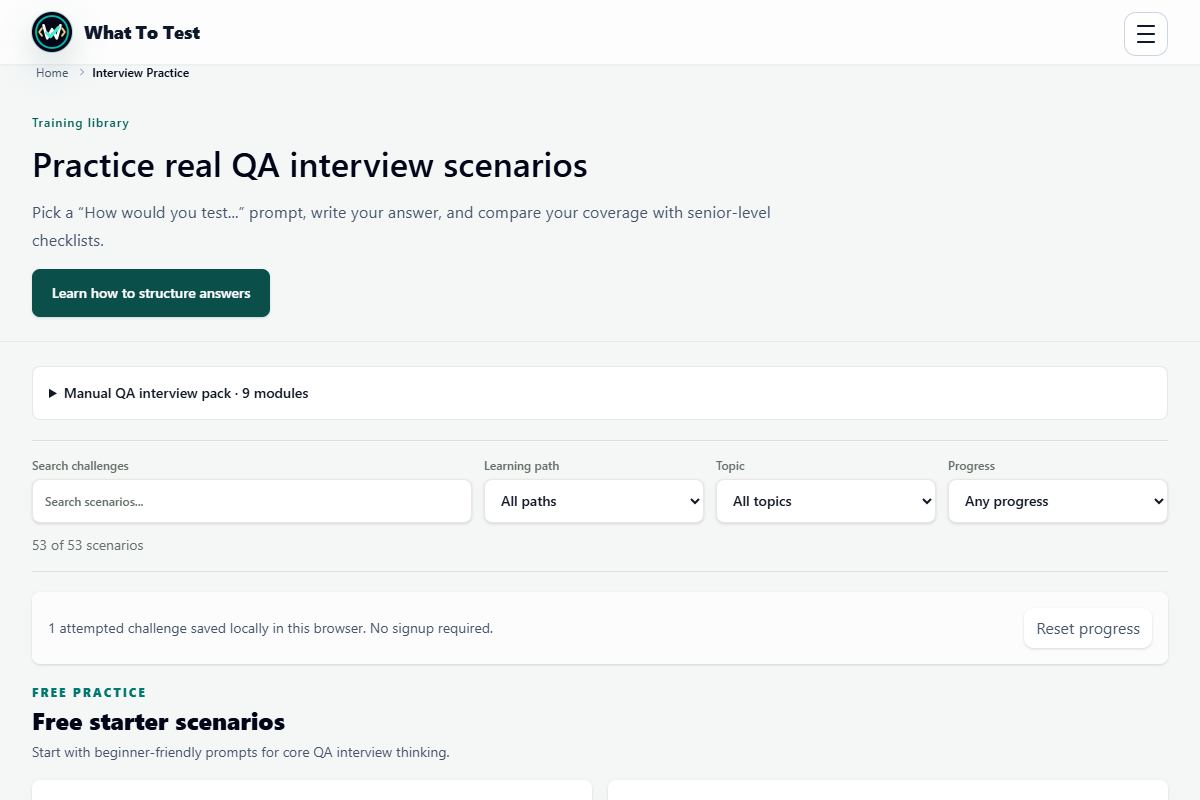
Interview scenario library

What to do

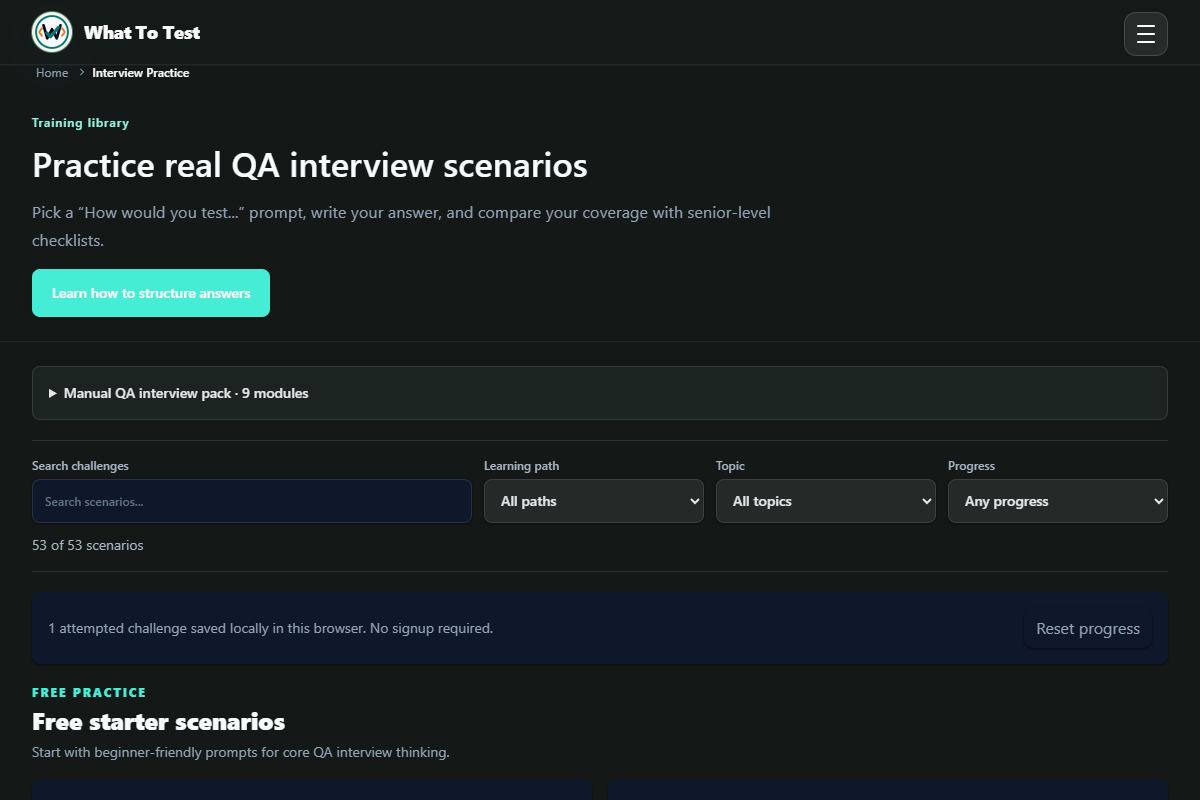
Search or filter by path, topic, and saved progress. Open a scenario and explain how you would test it.

What you will see

Compare checklist coverage and improve missed areas. Clear filters to return to all scenarios.

Open this feature
Interview scenario library: Scenario search and filters in the interview library.

Scenario search and filters in the interview library.

Open the screenshot to view it full size. Example session.
4.2

Manual QA interview pack

What to do

Work through the modules and their practice artifacts; use the access labels to see what is included.

What you will see

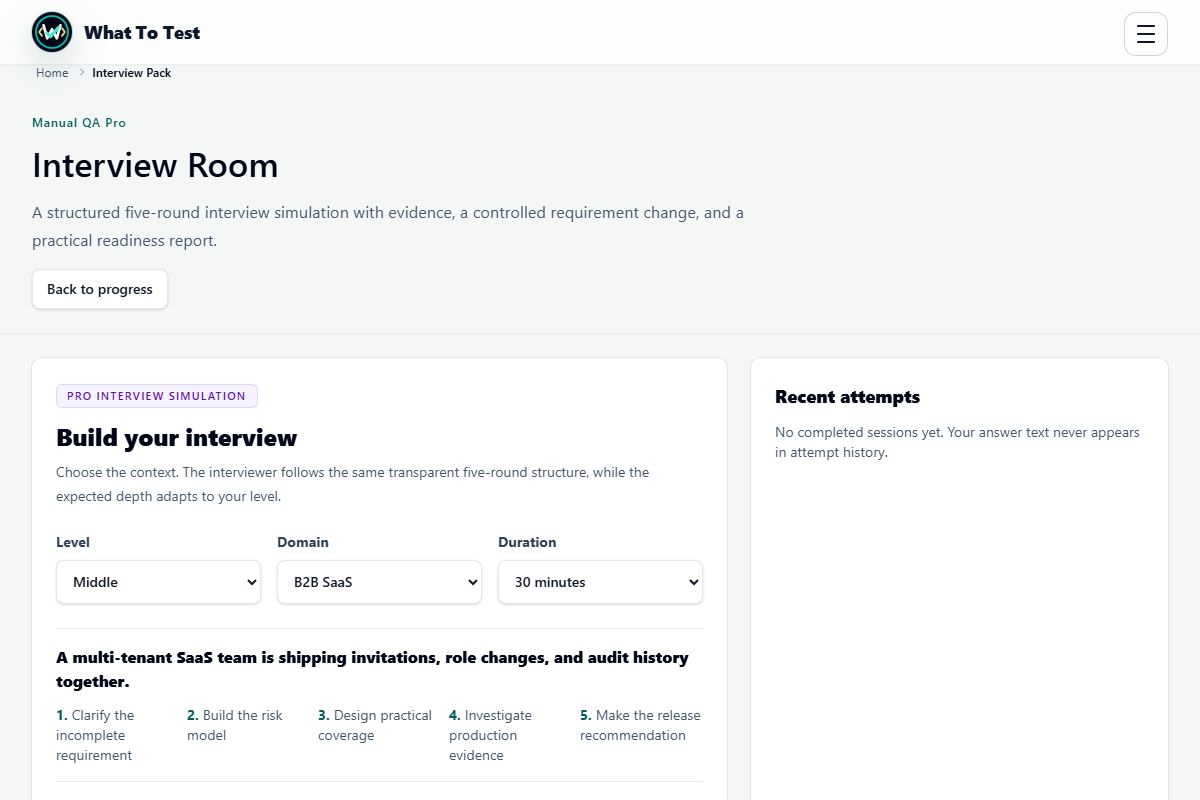
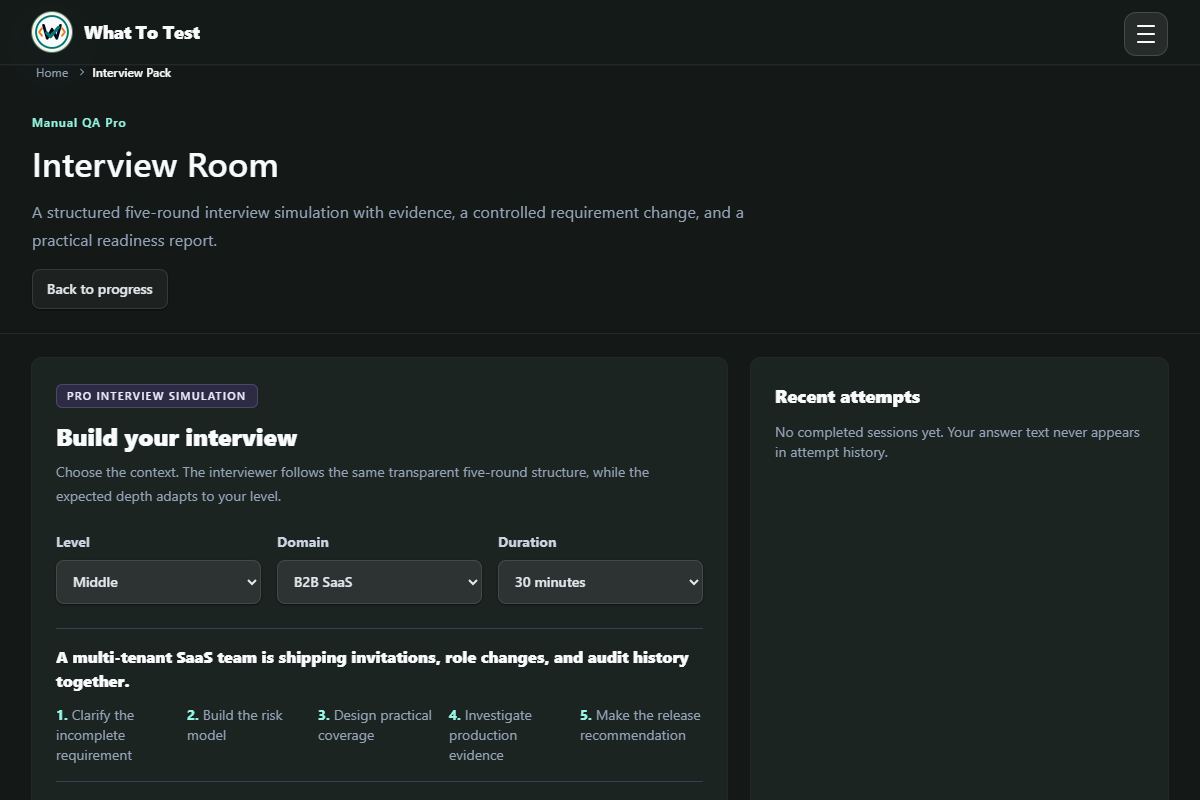
Build structured interview evidence and review your readiness. Designated advanced artifacts require Pro.

Open this feature
Manual QA interview pack: Interview module overview with free and Pro access information.

Interview module overview with free and Pro access information.

Open the screenshot to view it full size. Example session.
4.3

Vacancy Lab

What to do

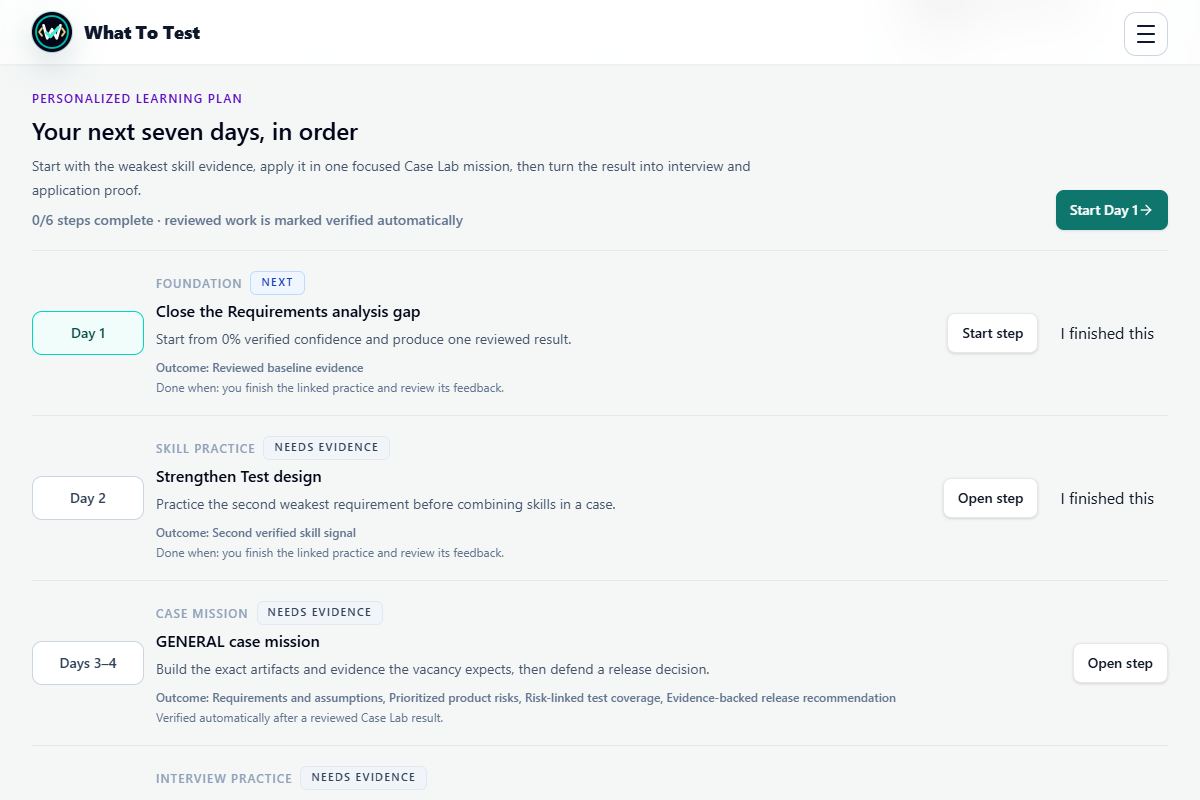
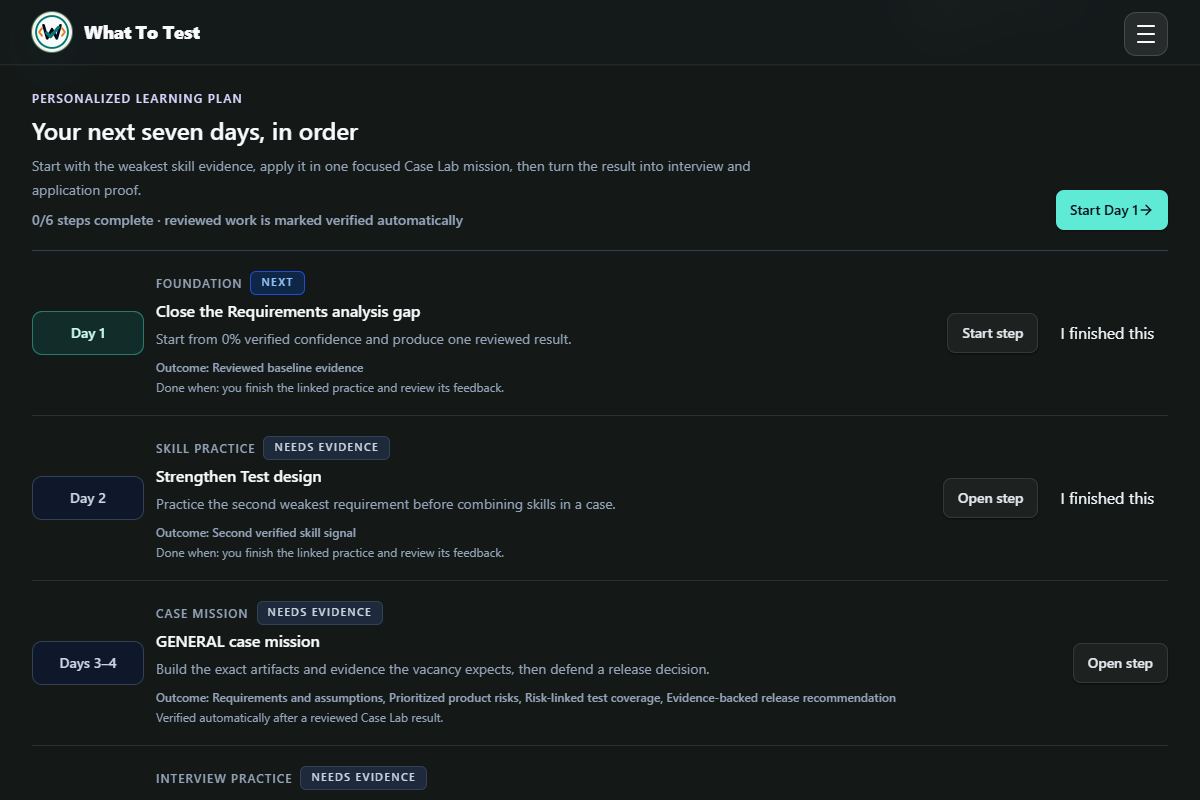
Paste the job description, review the detected role and skill gaps, and open a day in the learning plan.

What you will see

Follow linked practice to build evidence for the vacancy. Do not include personal or confidential details in pasted text.

Open this feature
Vacancy Lab: Learning plan built from a fictional QA vacancy. Local Pro access preview, not a real purchase.

Learning plan built from a fictional QA vacancy. Local Pro access preview, not a real purchase.

Open the screenshot to view it full size. Example session.
4.4

Case Lab assignments

What to do

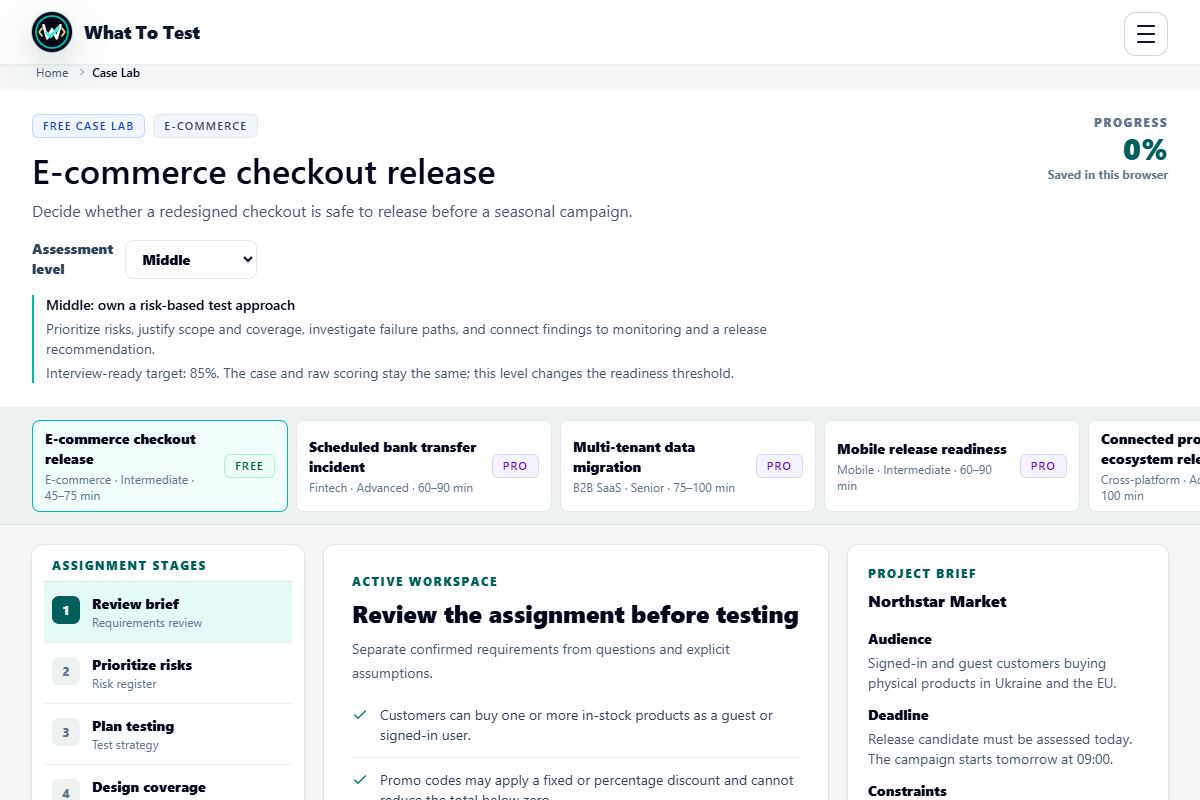
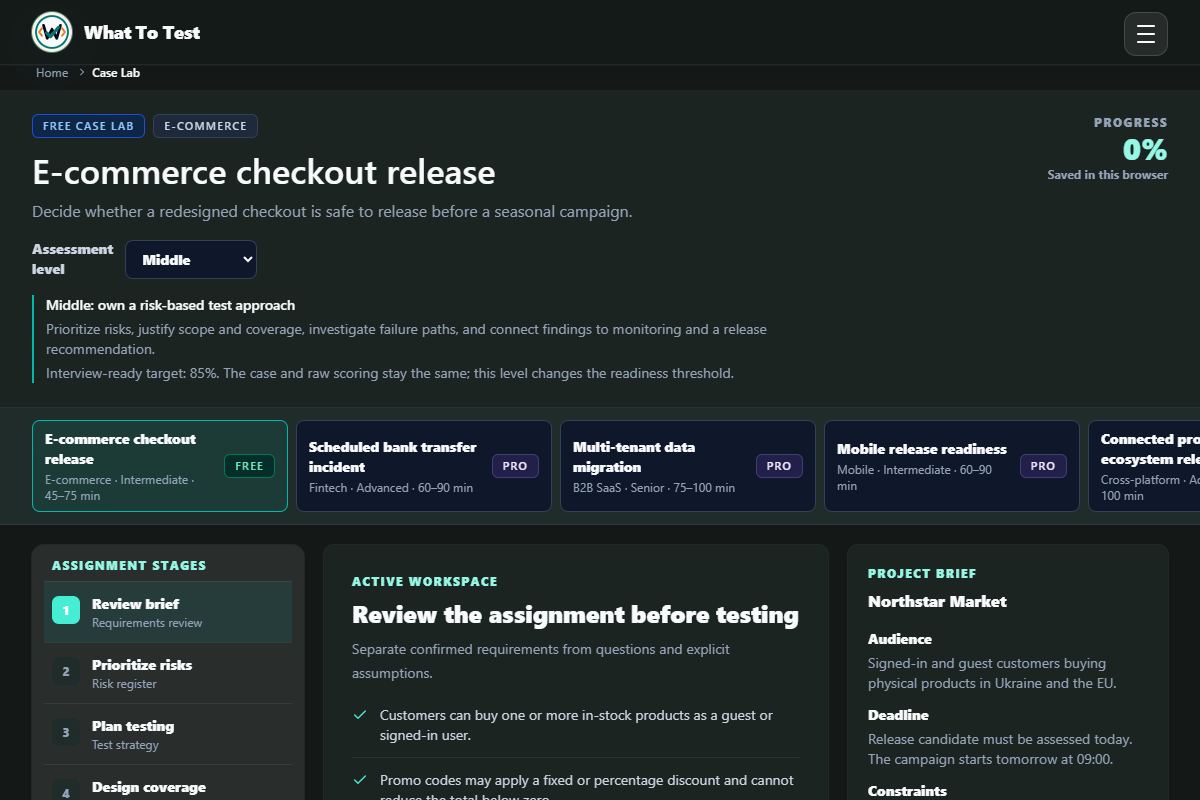
Choose a case and assessment level. Review the brief, prioritize risks, design tests, gather evidence, report defects, and decide on release.

What you will see

Save a review to see gaps in your authored work. Start with the free checkout case; other cases may require Pro.

Open this feature
Case Lab assignments: Free checkout assignment with its brief, assessment level, and stages.

Free checkout assignment with its brief, assessment level, and stages.

Open the screenshot to view it full size. Example session.
4.5

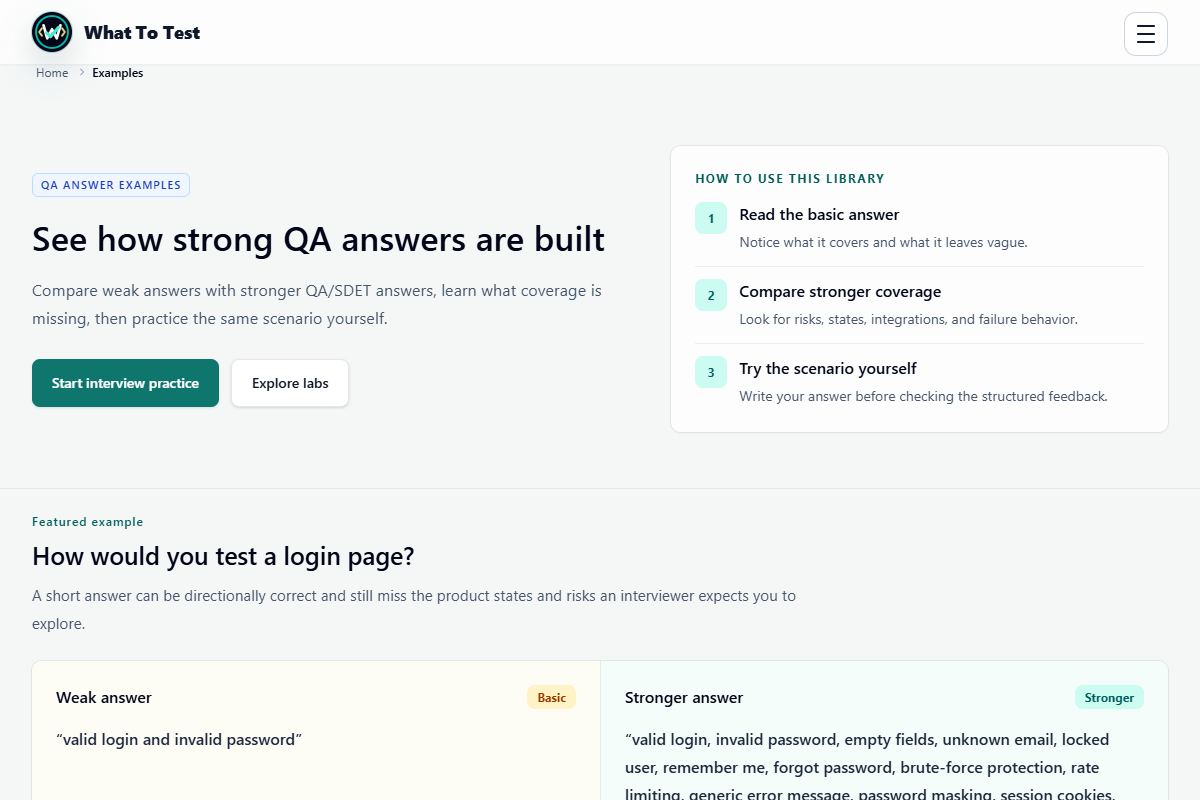
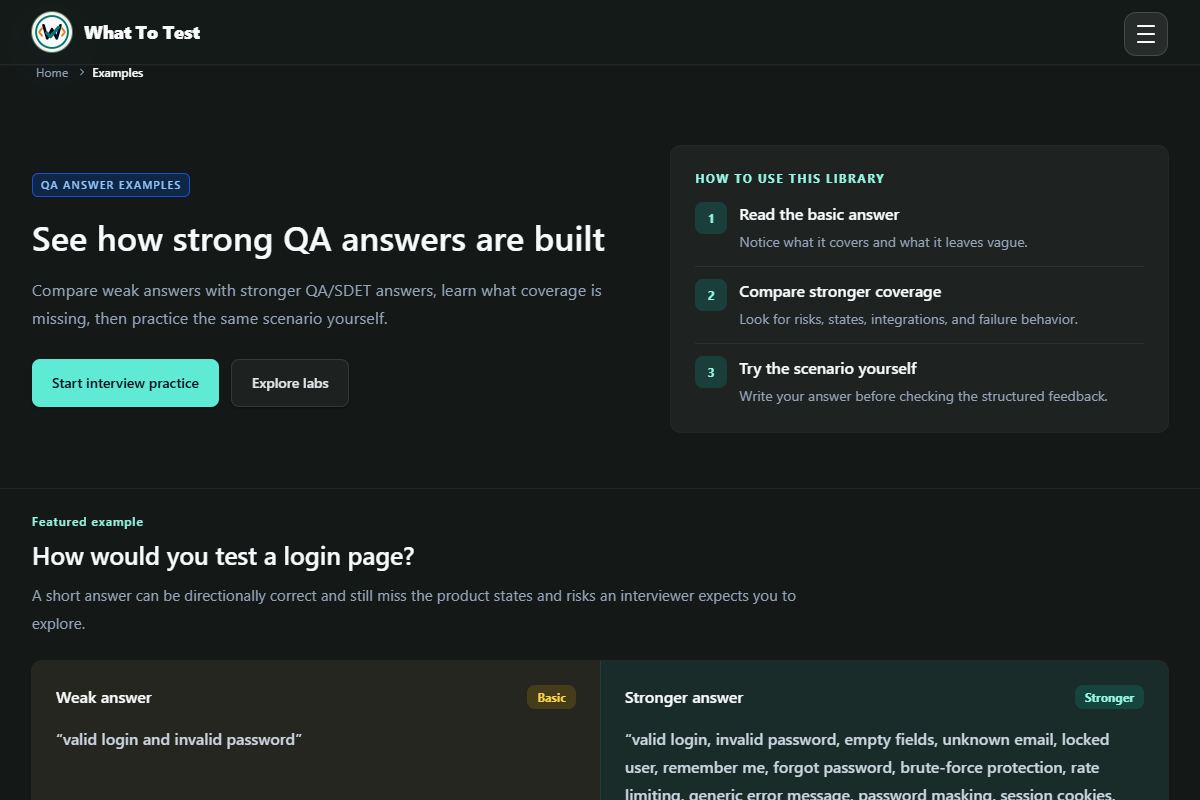
Examples and interview questions

What to do

Read worked examples and compare their structure with your own reasoning.

What you will see

Use them as a reference, not as a substitute for explaining a scenario in your own words.

Open this feature
Examples and interview questions: Worked examples and reference material.

Worked examples and reference material.

Open the screenshot to view it full size. Example session.
5. Feedback, progress, and sharing

Expand

5.1

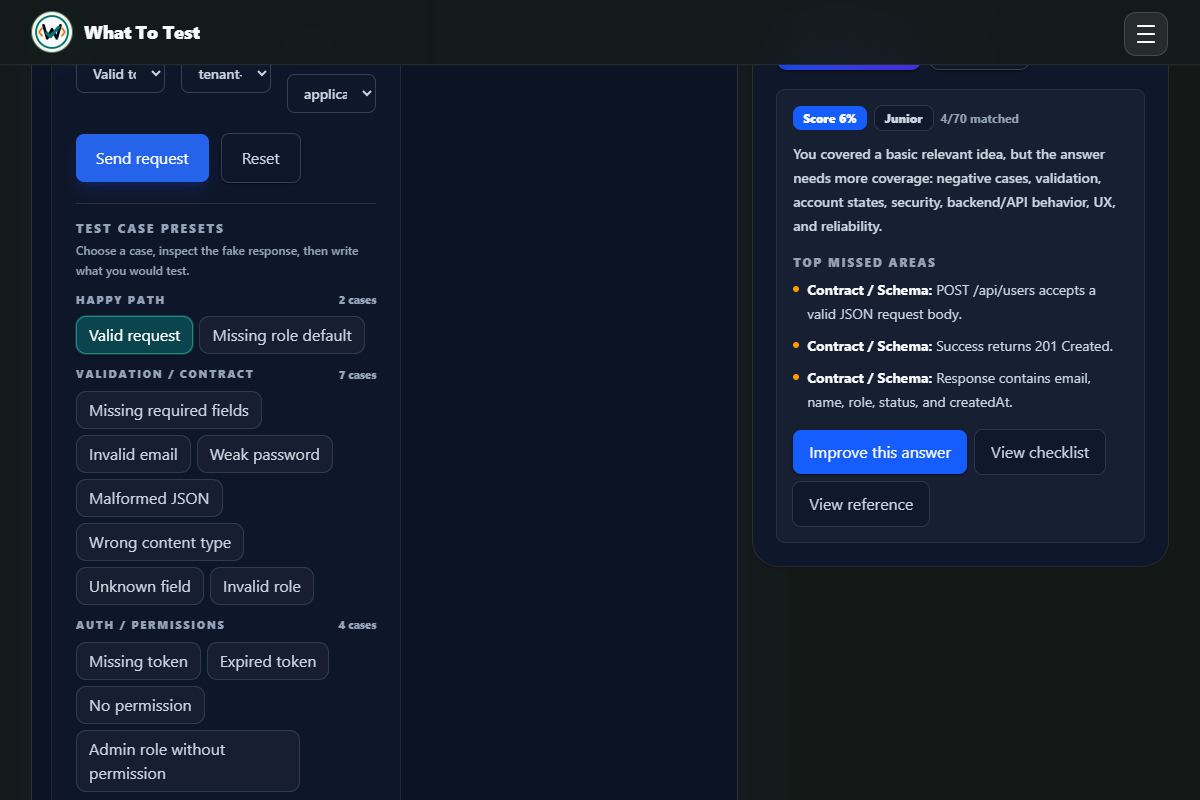
Coverage scores and missed areas

What to do

Evaluate an answer, read the matched checks and gaps, then revise and check again.

What you will see

Checklist scores and readiness labels are practice signals, not certification, hiring guarantees, or proof of product quality.

Open this feature
Coverage scores and missed areas: Actual local checklist feedback from an example answer, not an AI evaluation.

Actual local checklist feedback from an example answer, not an AI evaluation.

Open the screenshot to view it full size. Example session.
5.2

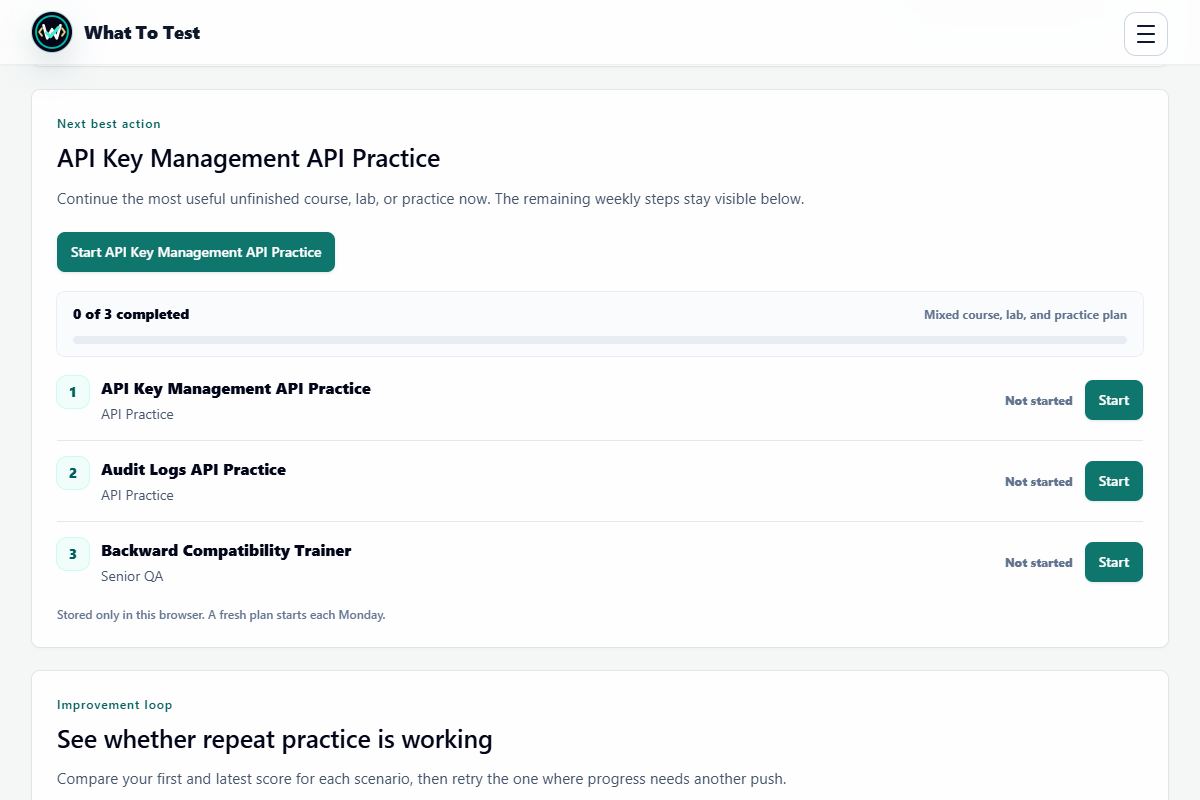
Weekly plan and improvement loop

What to do

Open the next suggested activity and complete its practice check.

What you will see

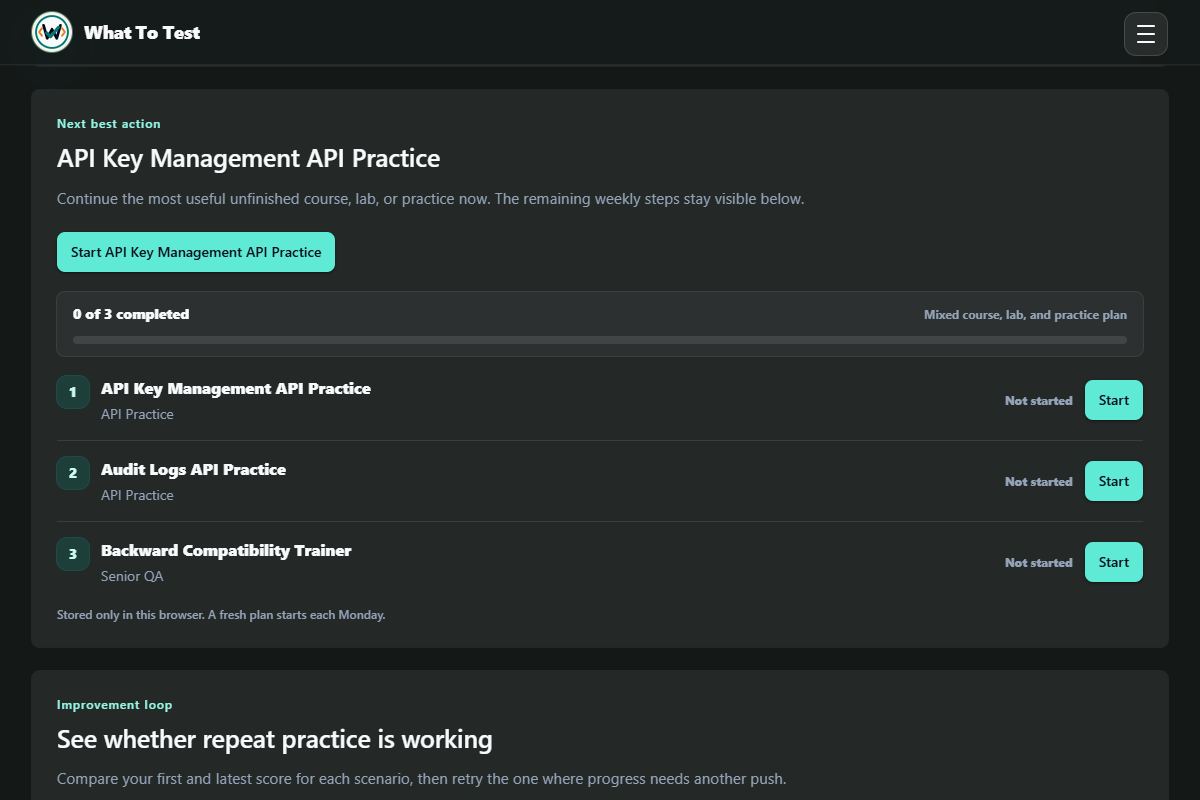
Progress tools use saved attempts to suggest focus areas and help you compare reviewed attempts over time.

Open this feature
Weekly plan and improvement loop: Next suggested practice based on the example browser history.

Next suggested practice based on the example browser history.

Open the screenshot to view it full size. Example session.
5.3

Course and lab progress

What to do

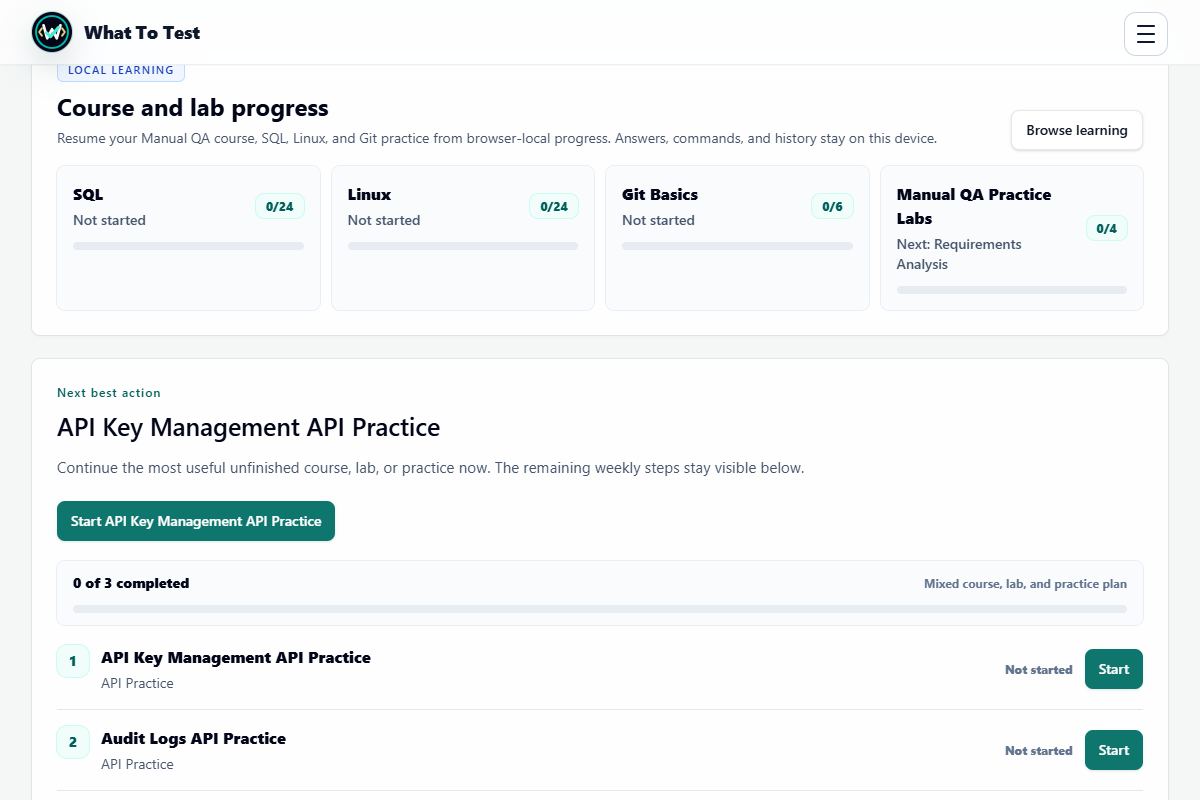
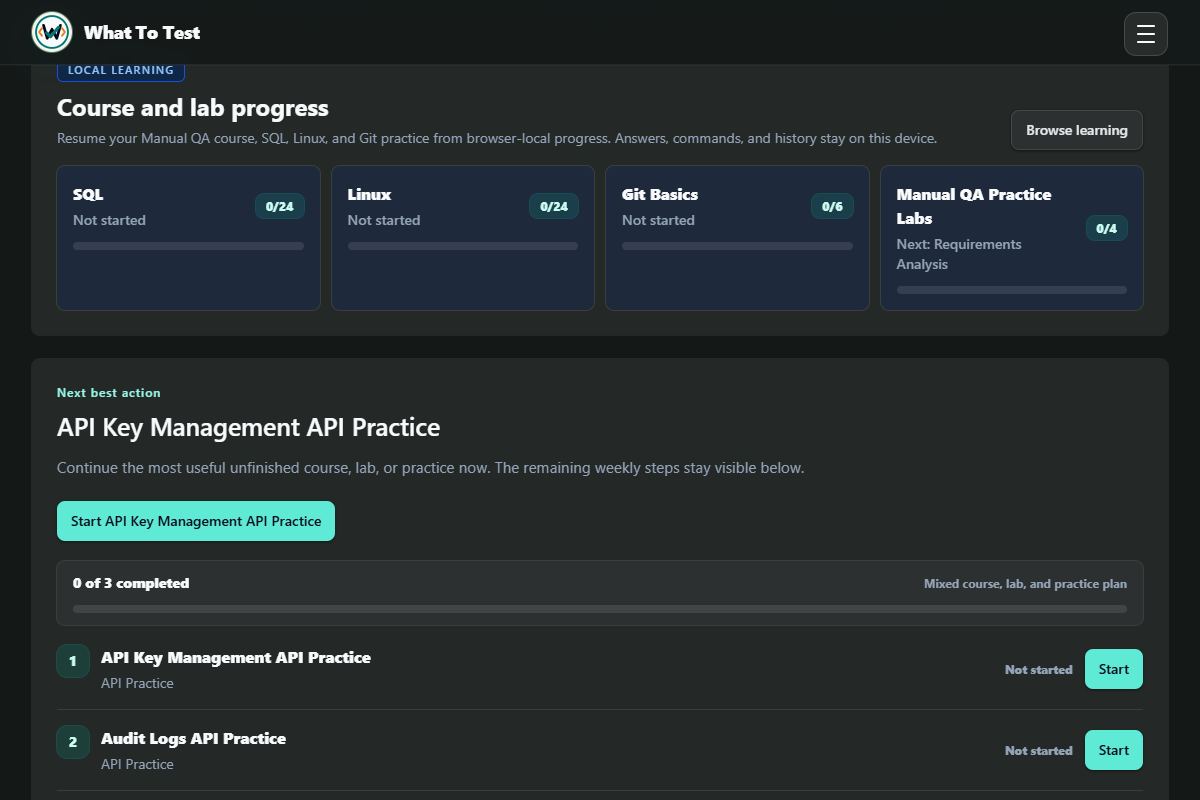
Review completed course steps, lab tasks, and recent attempts; use Continue to return to practice.

What you will see

Learning state is browser-local. Another device does not automatically have it, and clearing storage can remove it.

Open this feature
Course and lab progress: Course and lab progress overview in the example browser.

Course and lab progress overview in the example browser.

Open the screenshot to view it full size. Example session.
5.4

Readiness report and portfolio

What to do

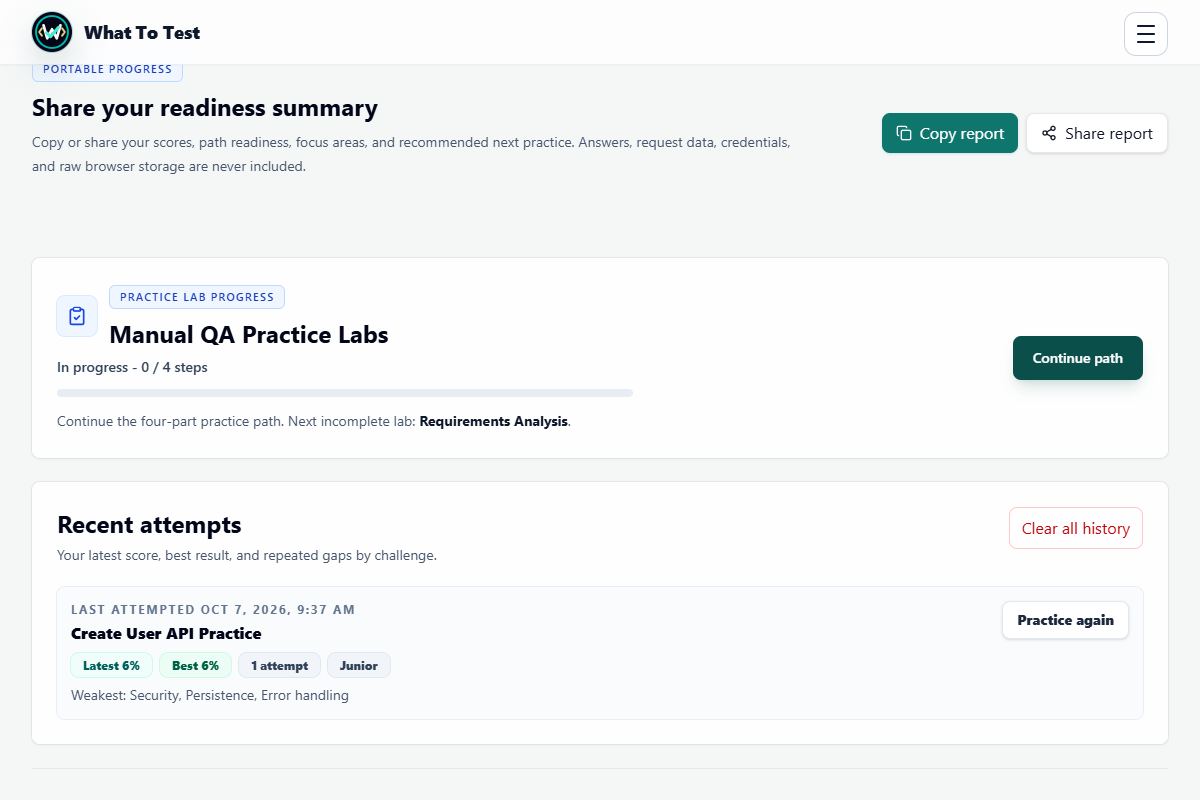
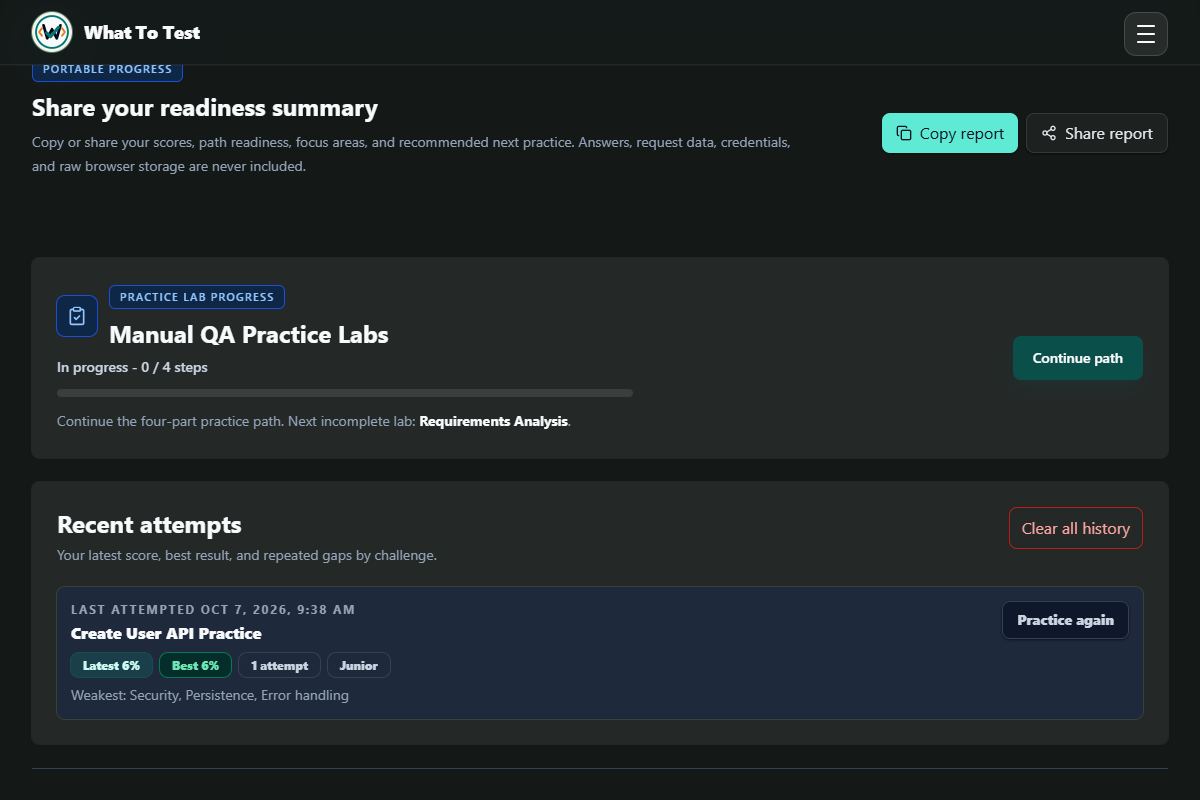
Use the report or portfolio controls to copy, download, or share the available summary.

What you will see

Share your practice evidence deliberately. A readiness summary does not include raw answers, credentials, or browser storage.

Open this feature
Readiness report and portfolio: Readiness summary controls. Nothing has been shared or sent.

Readiness summary controls. Nothing has been shared or sent.

Open the screenshot to view it full size. Example session.
6. Access and support

Expand

6.1

Free and Pro access

What to do

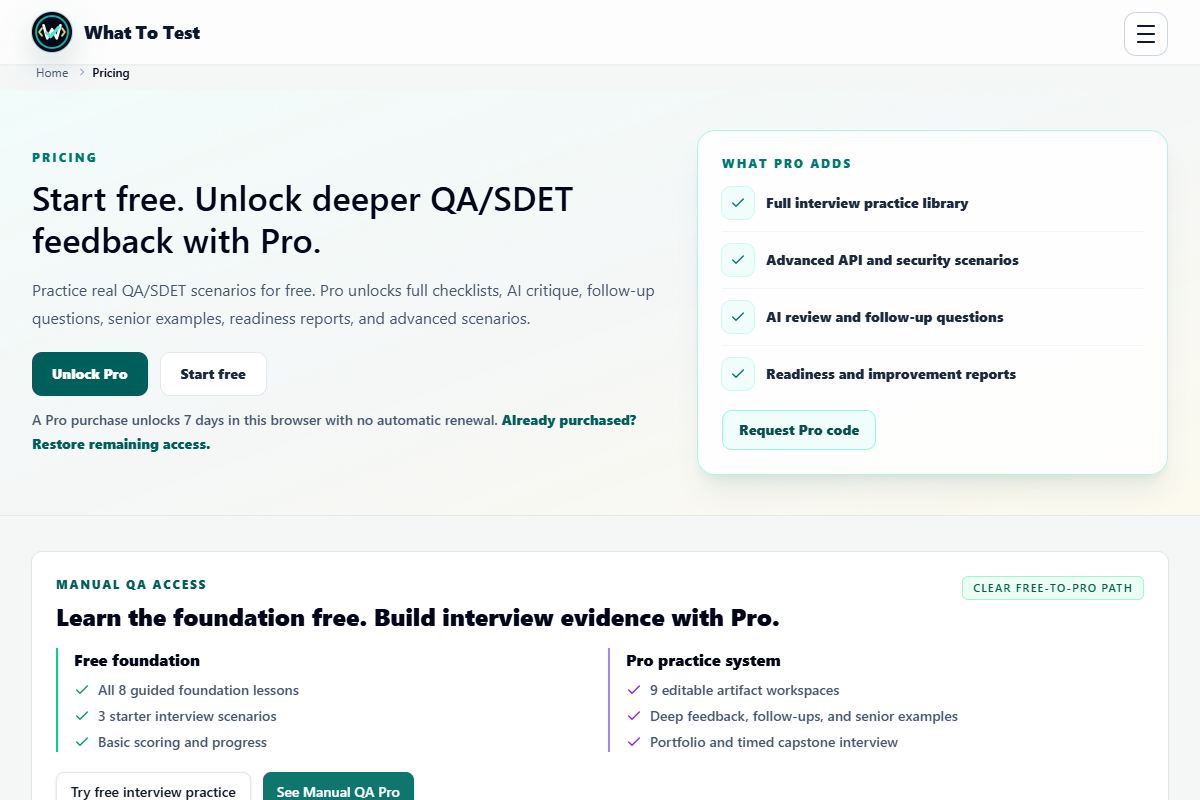
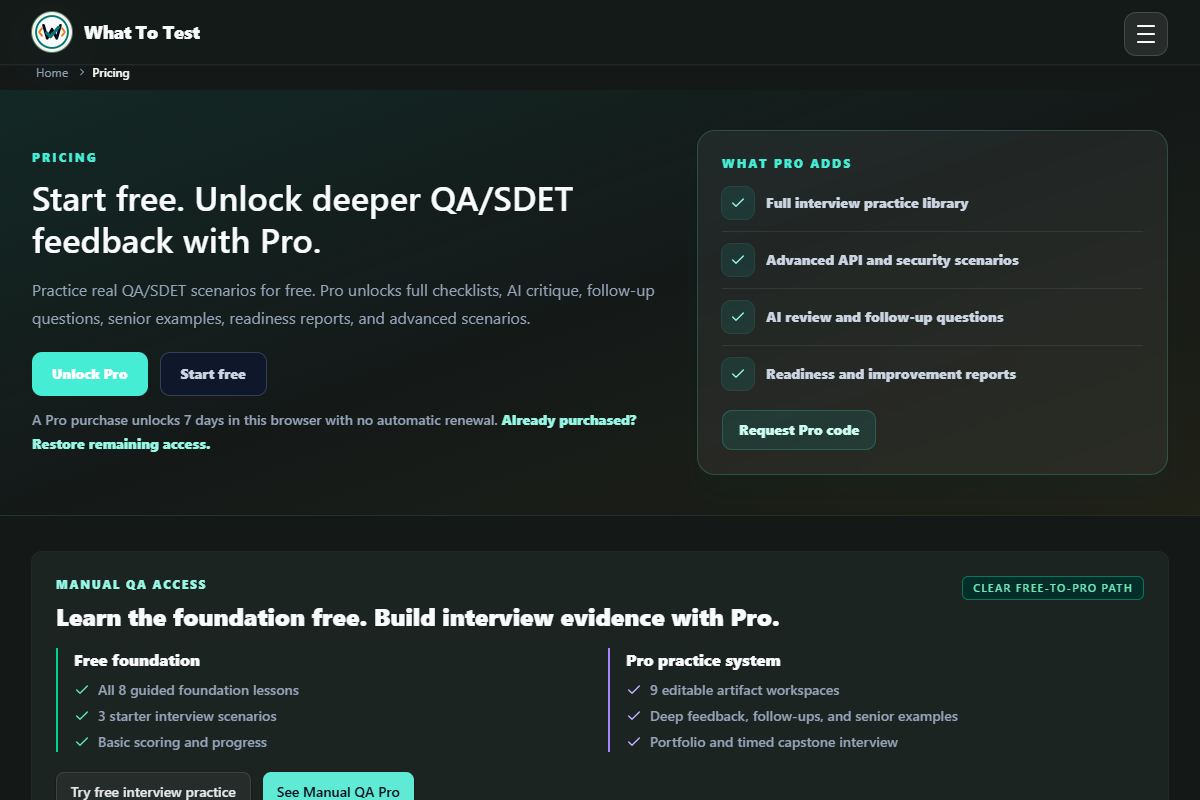
Check the current inclusions and access duration before purchasing or activating Pro.

What you will see

Free practice remains available without Pro. Designated advanced trainers and tools are marked Pro; the paid pass is not an automatically renewing subscription.

Open this feature
Free and Pro access: Free and Pro access options; check the live pricing page for current terms.

Free and Pro access options; check the live pricing page for current terms.

Open the screenshot to view it full size. Example session.
6.2

Optional AI review

What to do

Where offered with Pro, request an AI review of your practice answer.

What you will see

AI review is separate from local checklist matching and can be wrong. Do not submit passwords, tokens, personal data, or confidential material.

Open this feature
Optional AI review: AI Review entry point and access state. No AI request was sent or result fabricated.

AI Review entry point and access state. No AI request was sent or result fabricated.

Open the screenshot to view it full size. Example session.
6.3

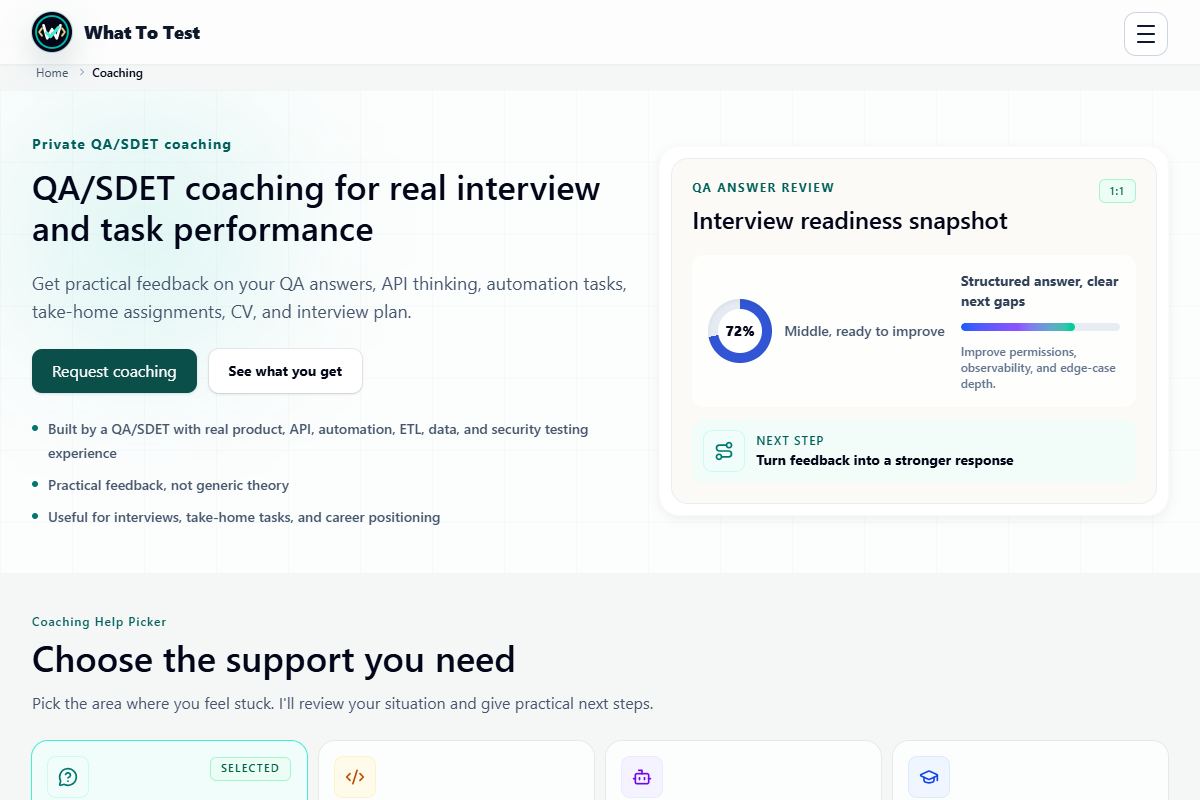
Coaching

What to do

Contact the operator about focused interview preparation or feedback.

What you will see

Coaching is a separately arranged service, not an automatic entitlement from a practice score.

Open this feature
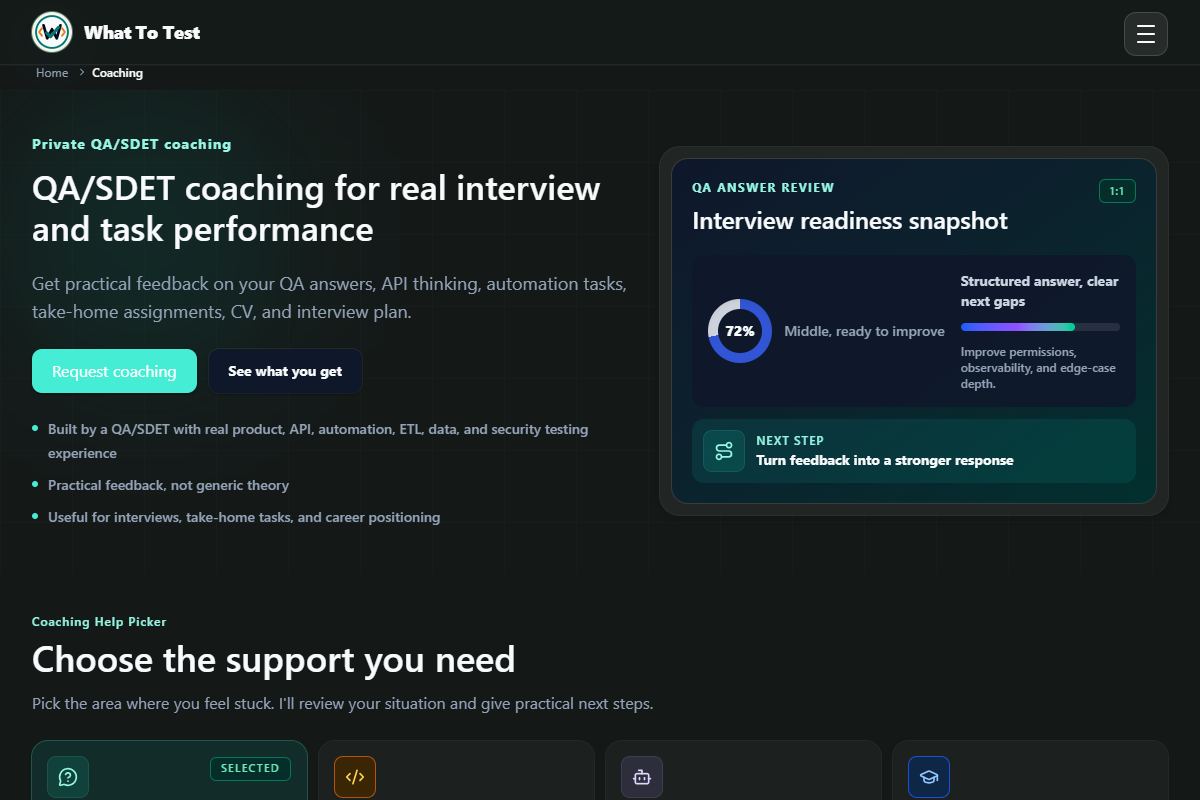
Coaching: Coaching options and the contact entry point.

Coaching options and the contact entry point.

Open the screenshot to view it full size. Example session.
6.4

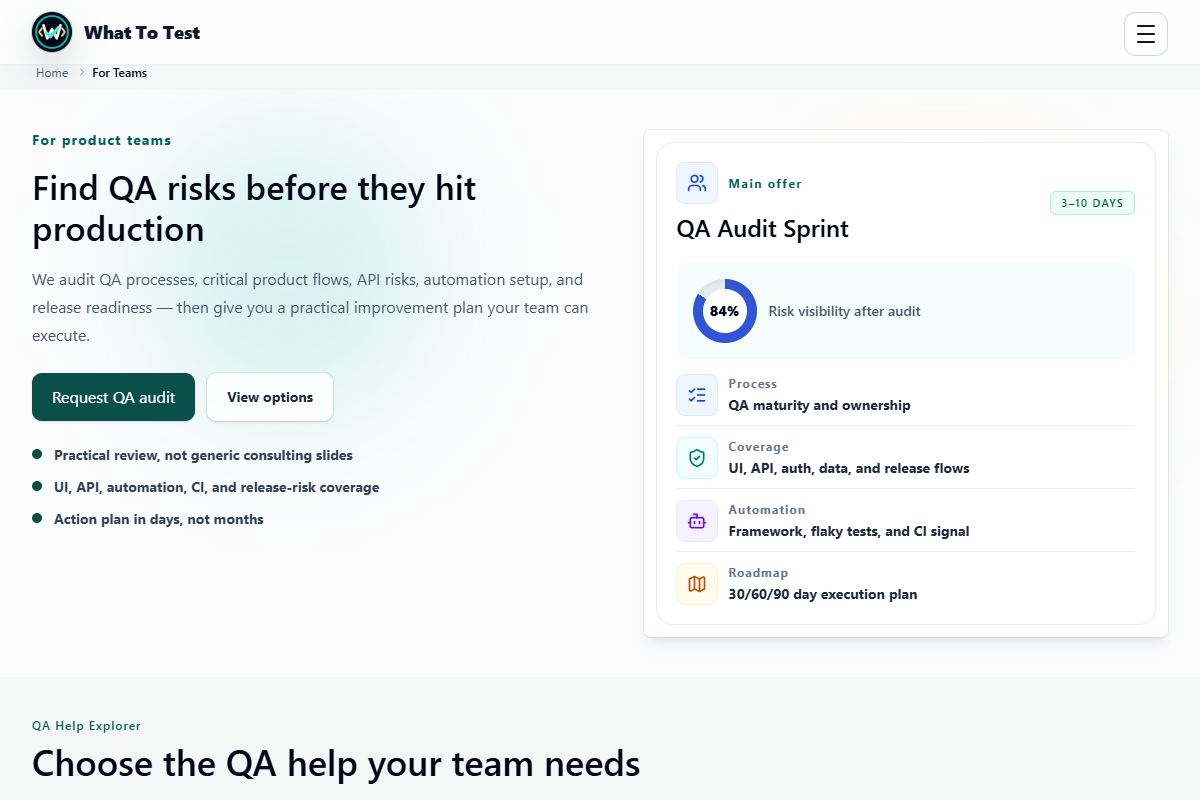
Team support

What to do

Review available QA audit, training, and team support options and request a discussion.

What you will see

Scope and delivery are agreed separately from browser-based practice.

Open this feature
Team support: Team QA support and training options.

Team QA support and training options.

Open the screenshot to view it full size. Example session.
7. Screenshot walkthrough

Expand

A free Create User API session. Screenshots match your light or dark theme; system follows your device preference.

Step 1 of 4

Choose your practice

Open Labs and choose a skill. For this walkthrough, use the free Create User API trainer. You do not need an account or a real API.

  • Open API Practice from Labs.
  • Choose Create User API Practice.

You see the endpoint, business rules, simulator, and test-idea editor.

Browse labs
Labs directory with Manual QA and Technical QA groups and Start actions
Open the screenshot to view it full size. Example session.
Step 2 of 4

Run a case and inspect the response

Choose Missing required fields, then press Send request. Compare the status code and response body with the expected behavior. The request stays inside a safe simulator.

  • Check which fields failed validation and whether a user was created.
  • Press Add this case to my answer to collect a test idea.

A useful test describes both the input and the expected outcome, not just the button you clicked.

Try the free simulator
Create User simulator showing a missing required fields request and its validation response
Open the screenshot to view it full size. Example session.
Step 3 of 4

Check your coverage and improve it

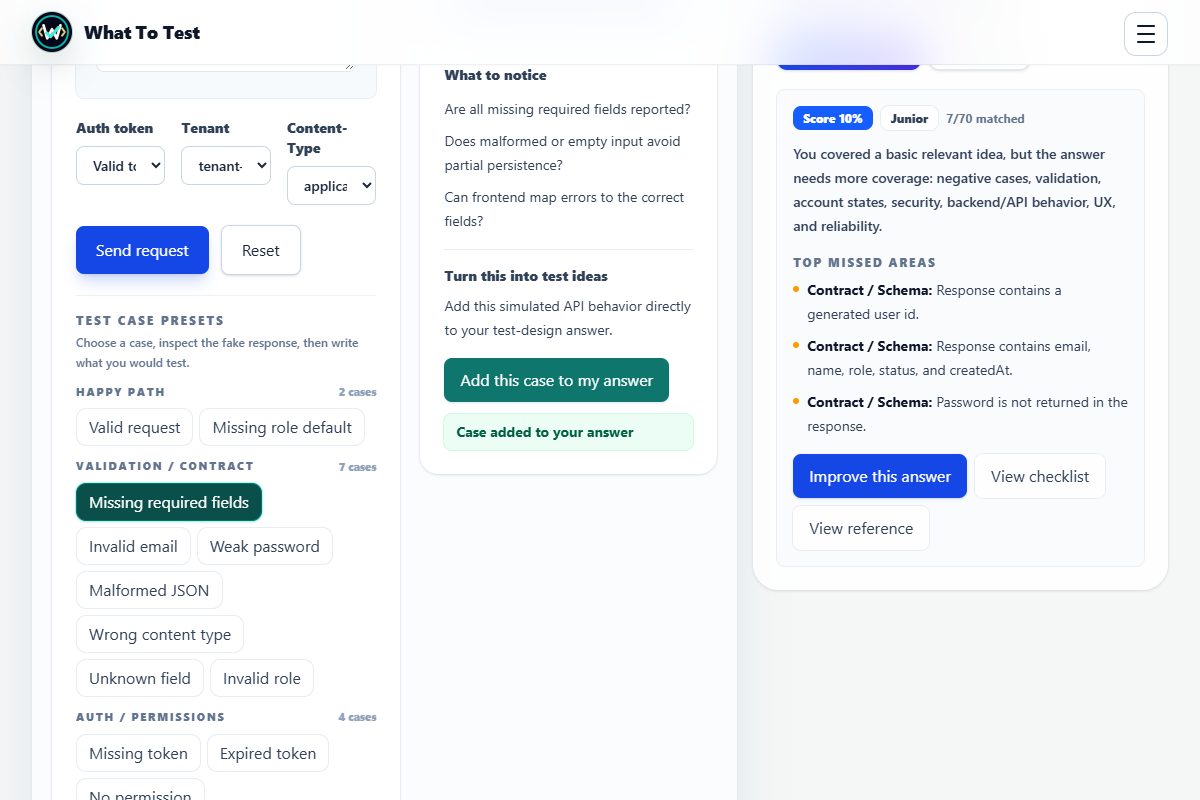
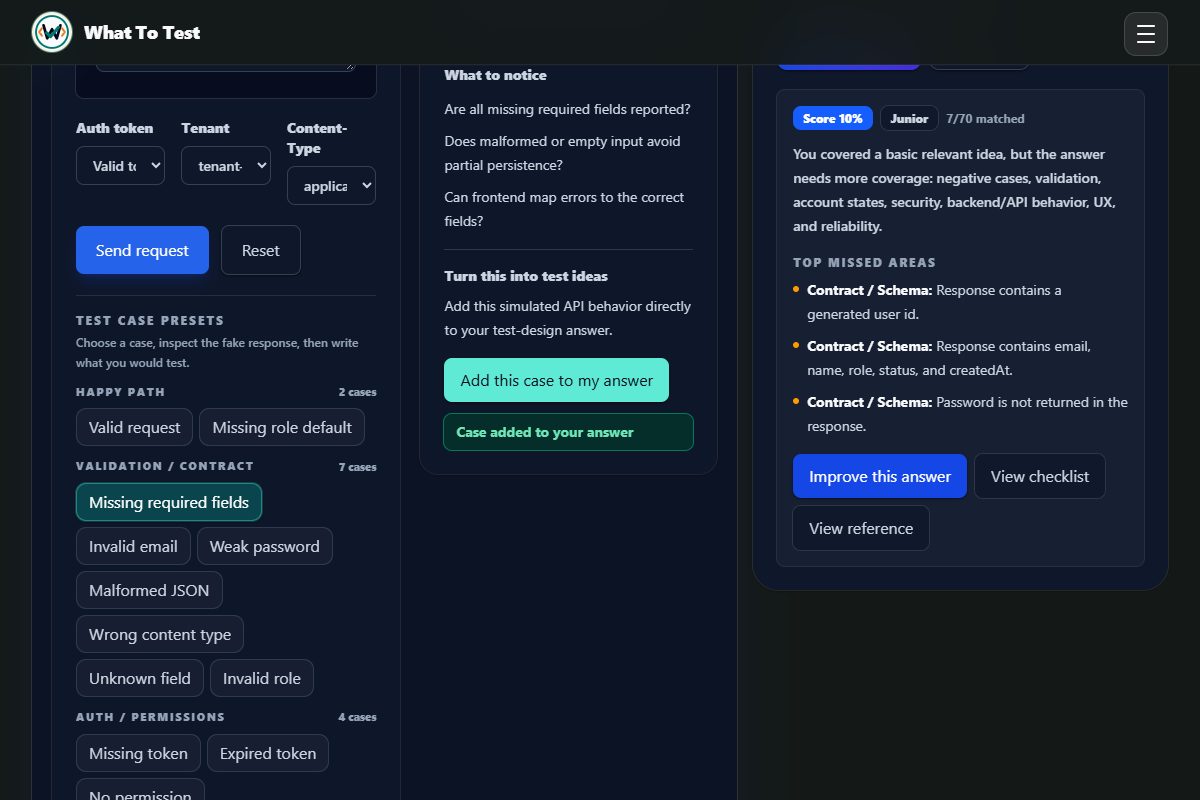
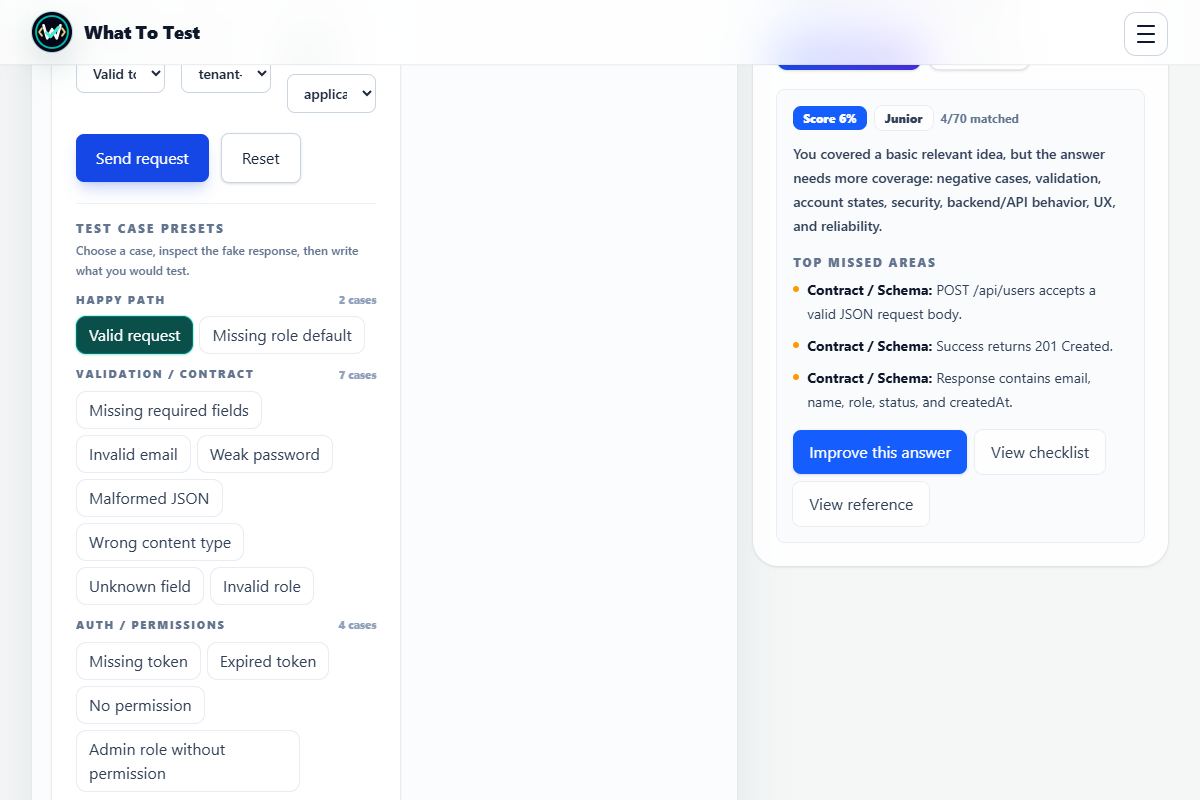
Add other test ideas in What would you test?, then press Check coverage. Start with a valid request, validation failures, permissions, and safe response data.

  • Read the score and top missed areas.
  • Use Improve this answer, add a missing check, and evaluate again.

The score measures checklist matches. It is feedback for practice, not proof that a product is secure or ready to release. Detailed coaching and some trainers require Pro.

Write your test ideas
A real Create User evaluation showing a score, matched checks, missed areas, and Improve this answer
Open the screenshot to view it full size. Example session.
Step 4 of 4

Find your result and continue

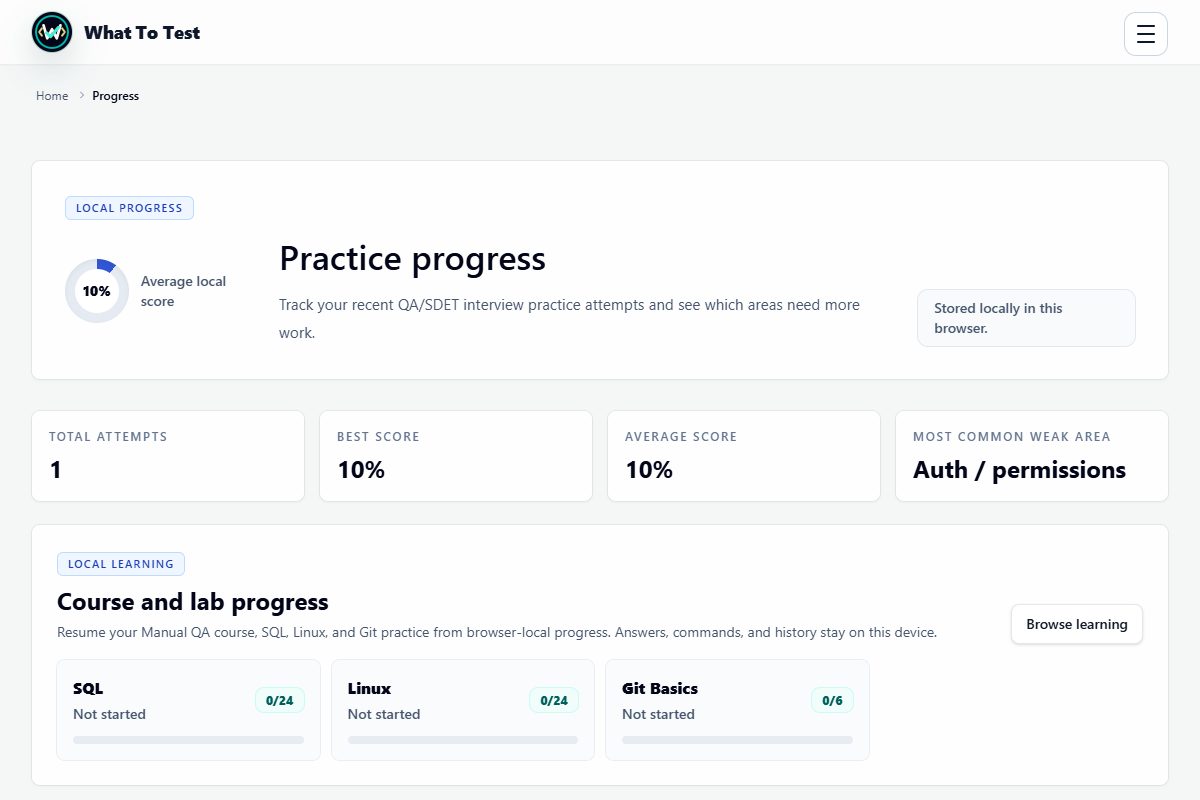
Open Progress from the menu. Your evaluated attempt contributes to your scores and focus areas. Continue the same practice or work on a missed area.

  • Look at your latest attempt and the suggested next practice.
  • Return later in the same browser to continue.

Progress is stored locally. Another browser or device will not automatically have it, and clearing browser storage can remove it. These screenshots show an example session, not your own scores.

Open your progress
Progress page after the same practice session, showing one saved attempt and the next focus area
Open the screenshot to view it full size. Example session.
Ready for your first attempt?

Start with one case. Inspect what happened, explain what should happen, then improve one missed area.
Start Create User practice